Integration
Ghost Browser
Ghost Browser extends your browsing capabilities beyond limitations imposed by traditional browsers. By incorporating proxies, it empowers you to manage multiple accounts simultaneously and execute scraping tasks with diverse IP addresses, elevating your browsing experience to new heights.
Setting up proxies using GhostBrowser
Download Ghost Browser from the official website to access its advanced features
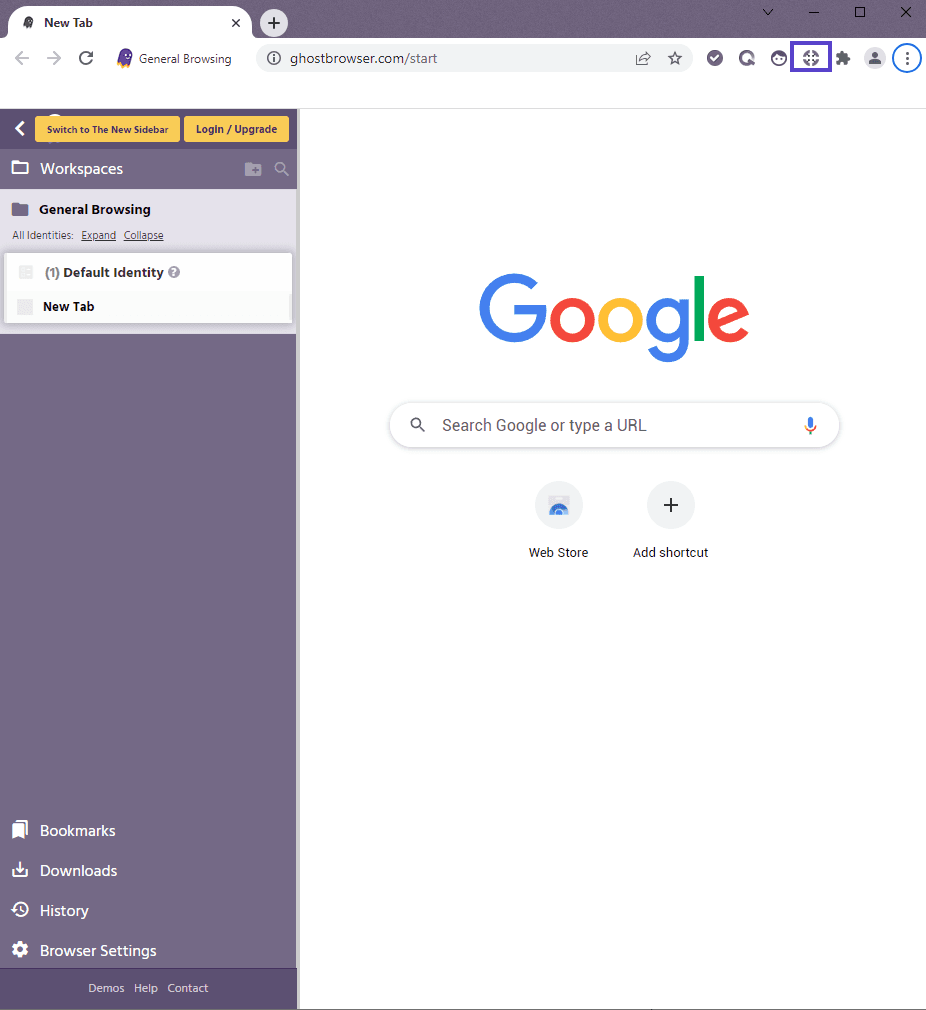
After installation, click on the Ghost Proxy Control icon among the extension icons in the top-right corner of Ghost Browser, then choose "Add/Edit Proxies".
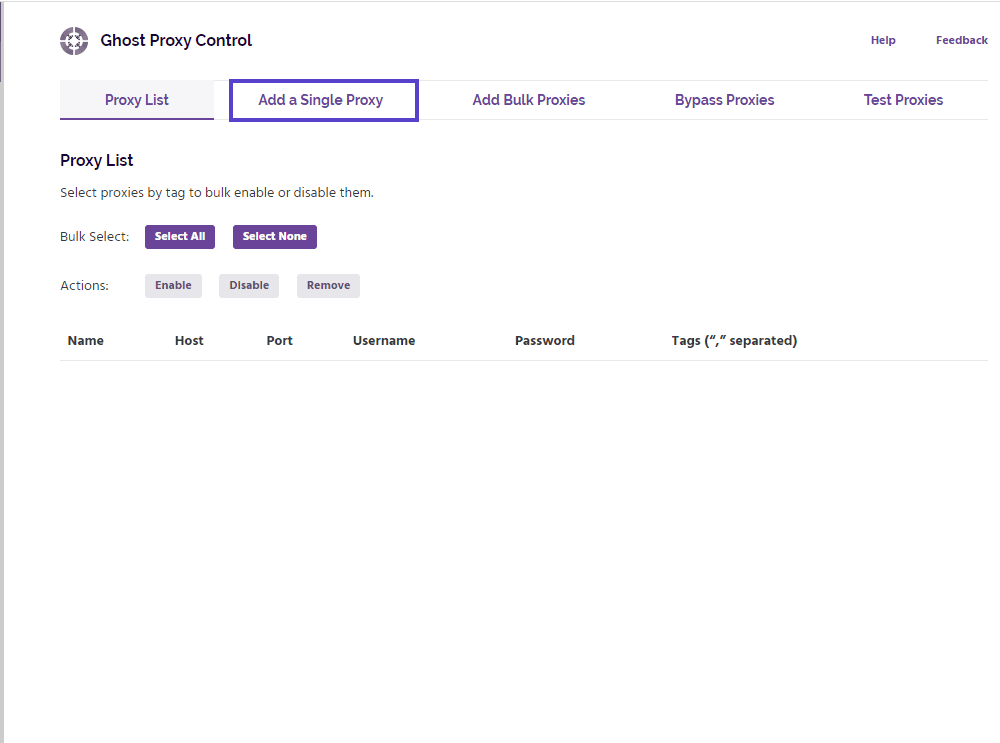
Navigate to the "Add a Single Proxy" tab to input your proxy details and configure the settings accordingly.
In your dashboard, click "My Proxies" in the left sidebar. If the proxy is still Pending, click "Start proxy" first.
In the Connection column, the "HTTP proxy" line has your host with the HTTP port, and the "SOCKS5 proxy" line has the same host with the SOCKS5 port. Under Credentials, click "Copy username"; your proxy password appears with the eye icon, or click "Copy password". Your account password isn't needed.
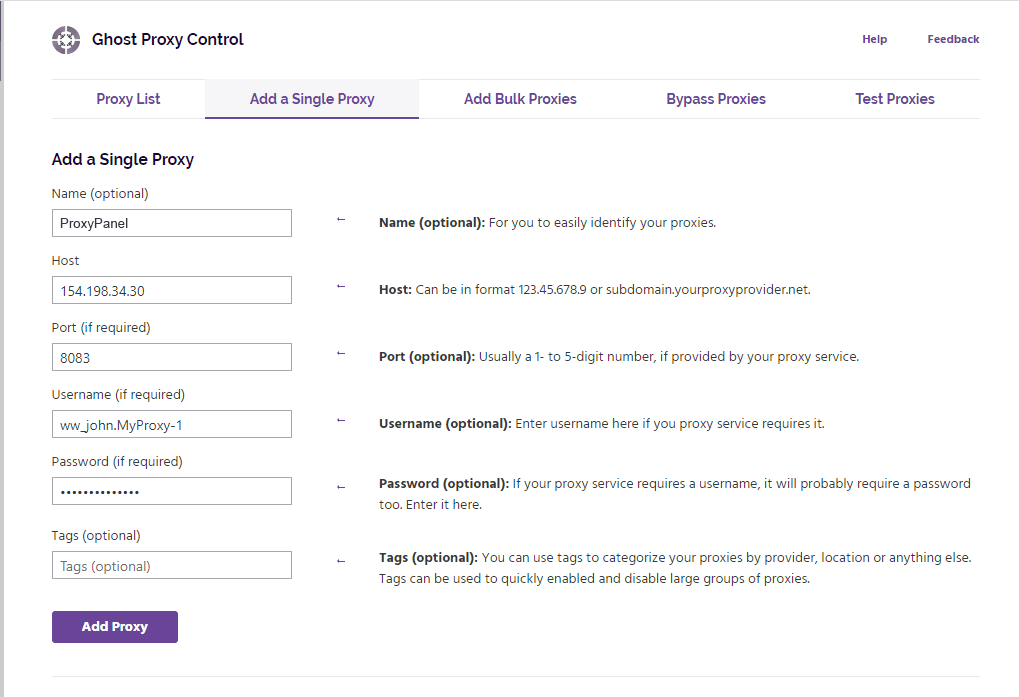
Enter your proxy host in "Host", the port in "Port", and your username and password, then click on the "Add Proxy" button. For HTTP, use the host as shown with the HTTP port. For SOCKS5, type socks5:// before the host (socks5://HOST) and use the SOCKS5 port; Ghost Browser has no separate type menu.
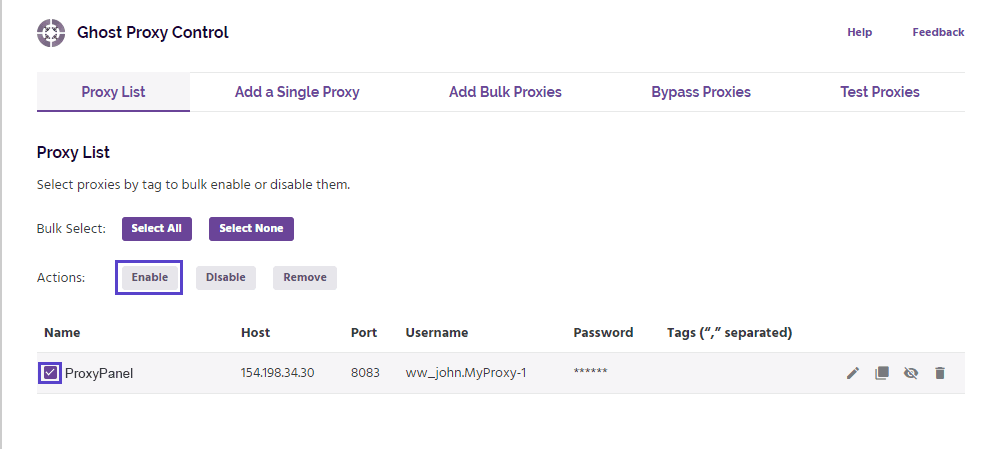
Click the "Proxy List" tab to return to the list of proxies. Then tick your proxy and click "Enable" under Actions to activate it.
Open the Ghost Proxy Control menu again and assign the proxy to the active tab, an identity or a workspace. A proxy set on a tab takes priority over the identity and workspace.
That’s it! You’ve successfully integrated ProxyPanel with Ghost Browser.