Integration
AdsPower
AdsPower is an anti-detect browser designed for managing multiple online accounts securely. It provides unique browser fingerprints for each profile, preventing websites from detecting and blocking your activities. This tool is essential for tasks like web scraping, social media marketing, and e-commerce, where managing multiple accounts without being flagged is crucial. AdsPower supports automation and integrates with various third-party tools, making it versatile for both individual and business use.
AdsPower
Setting up proxies using AdsPower
Download AdsPower and install it from the official website onto your device.
Open the application and sign up if you are not an existing user. If you already have an account, simply sign in.
Click on "New Profile" from the left sidebar to add a new profile.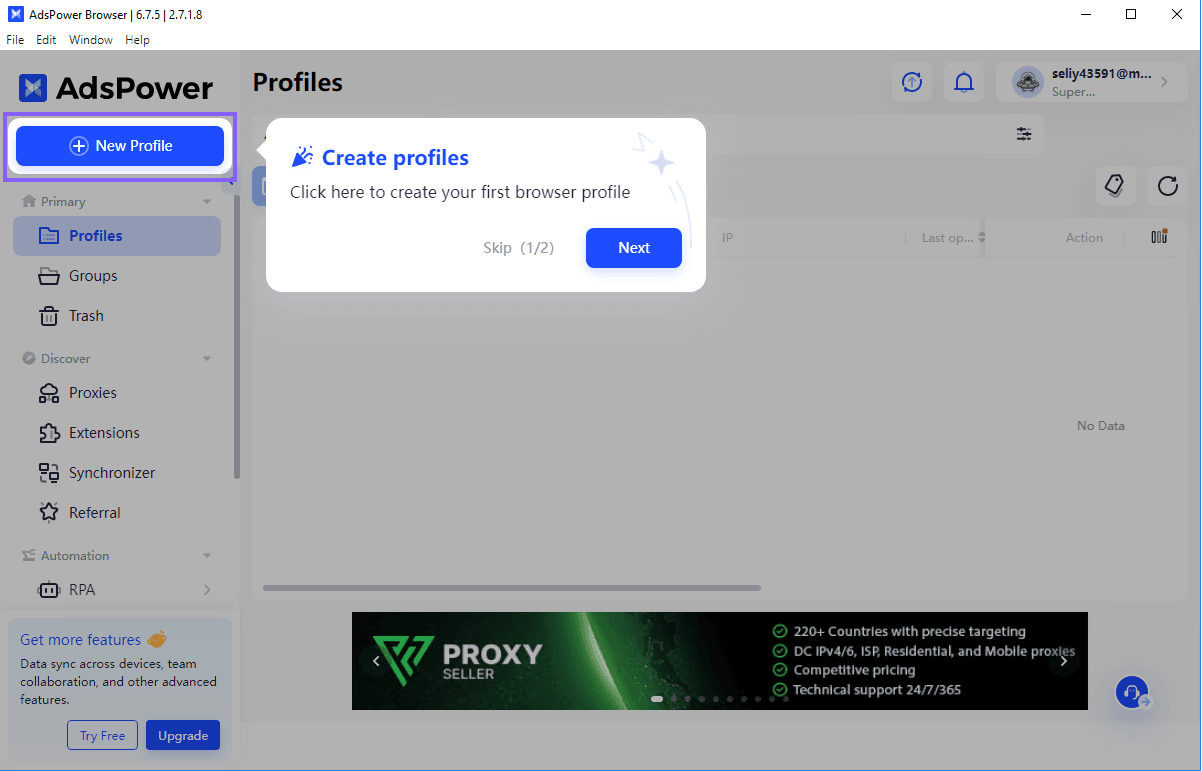
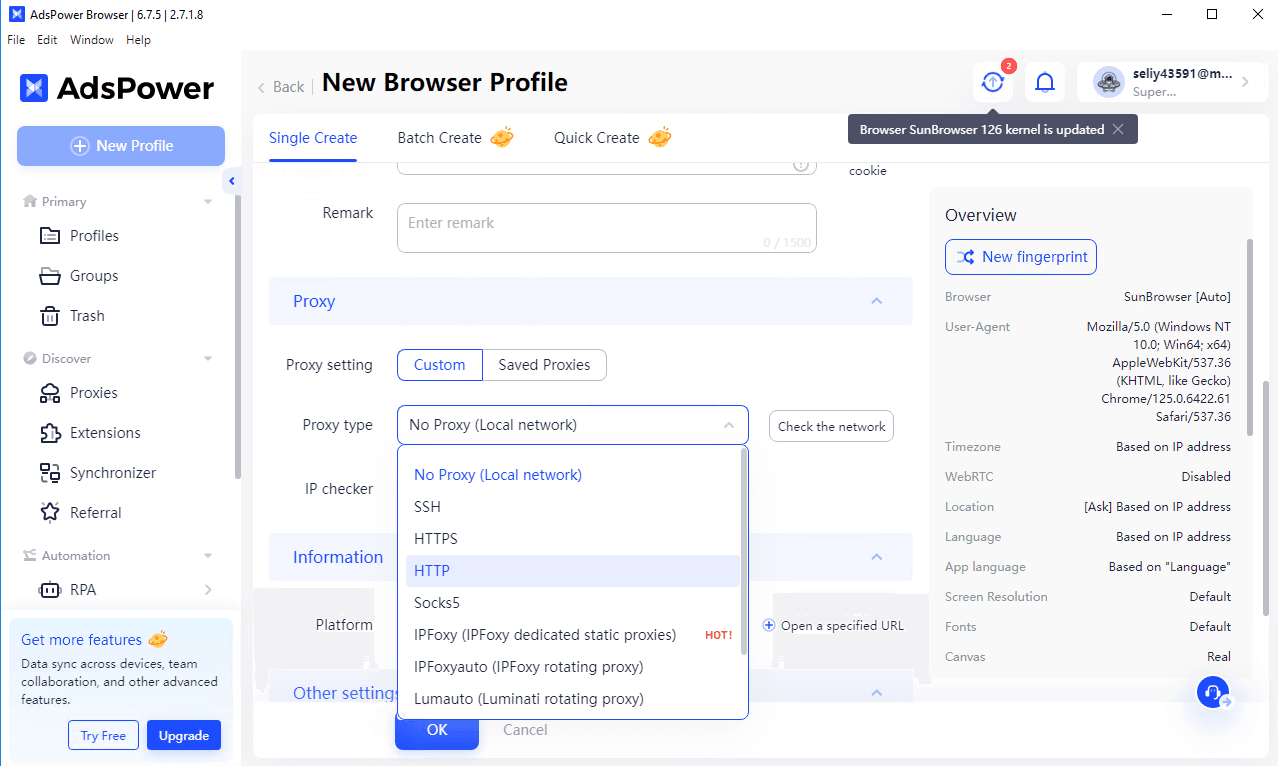
After configuring your browser settings, scroll down to the "Proxy" section, keep "Custom" selected and choose either HTTP or Socks5 as the "Proxy type".
In your dashboard, click "My Proxies" in the left sidebar. If your proxy is Pending, click "Start proxy" first.
The Connection column shows two lines, "HTTP proxy" and "SOCKS5 proxy", each with the host and its own port. Under Credentials, click "Copy username", and reveal your proxy password with the eye icon or copy it with "Copy password". No account password is needed.Enter your ProxyPanel host and the port that belongs to the proxy type you picked in "Host:Port" (the HTTP port for HTTP, the SOCKS5 port for Socks5), then your username and password in "Proxy username" and "Proxy Password".
AdsPower also has a "Change IP URL" field for mobile proxies. To change your IP from inside AdsPower, open your proxy's ⋮ menu in the dashboard, click "Copy change-IP link" and paste it there. Anyone with that link can change your IP, so keep it private.
Using IP whitelisting instead? Whitelisted IPs connect through a separate whitelist port: enter the endpoint from "Copy endpoint" in the "IPv4 whitelist" window, choose the protocol you set for the whitelist, and leave the username and password empty. The regular HTTP and SOCKS5 ports always ask for your login.
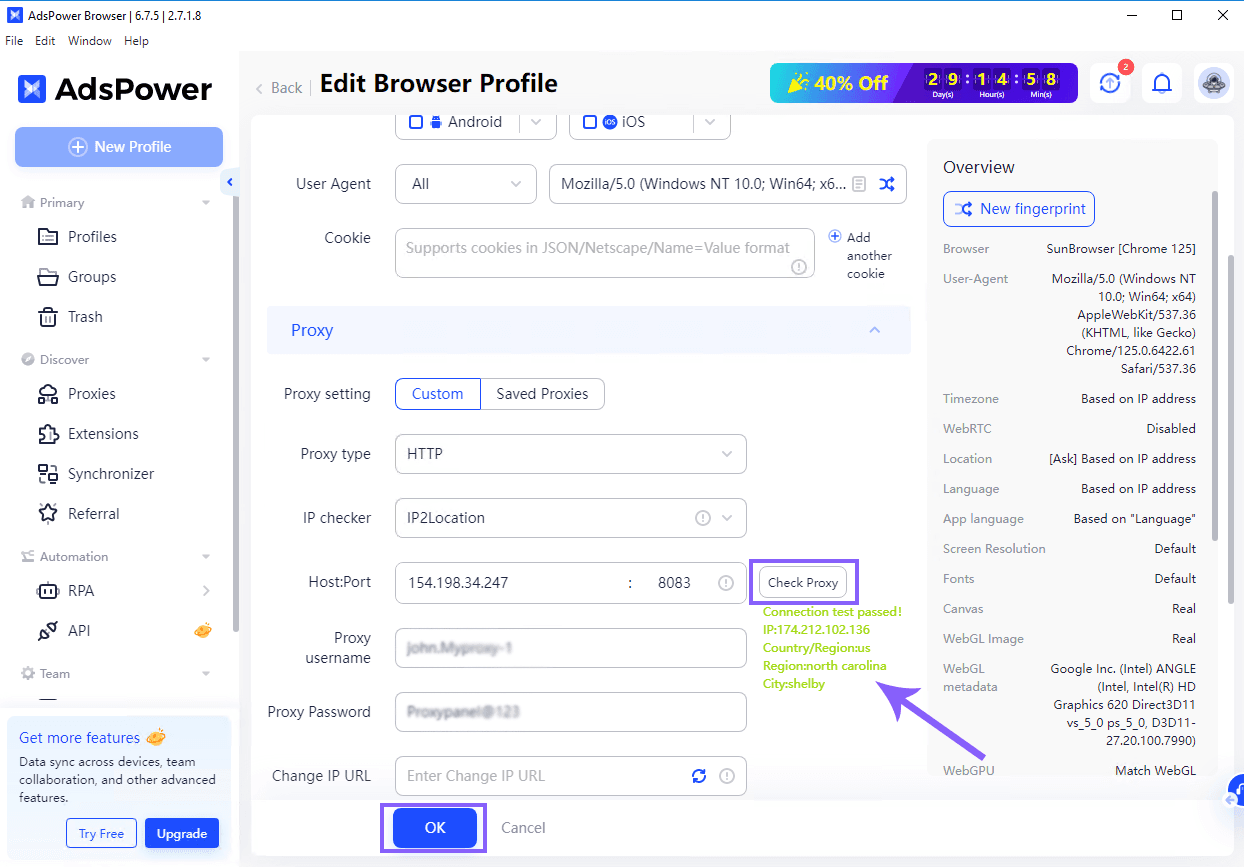
The proxy configuration process is now complete. If you need to modify any other settings, make the necessary changes and then click the OK button to save your profile.
To ensure everything is working as expected, go to the profiles section, press Open, and then launch the browser
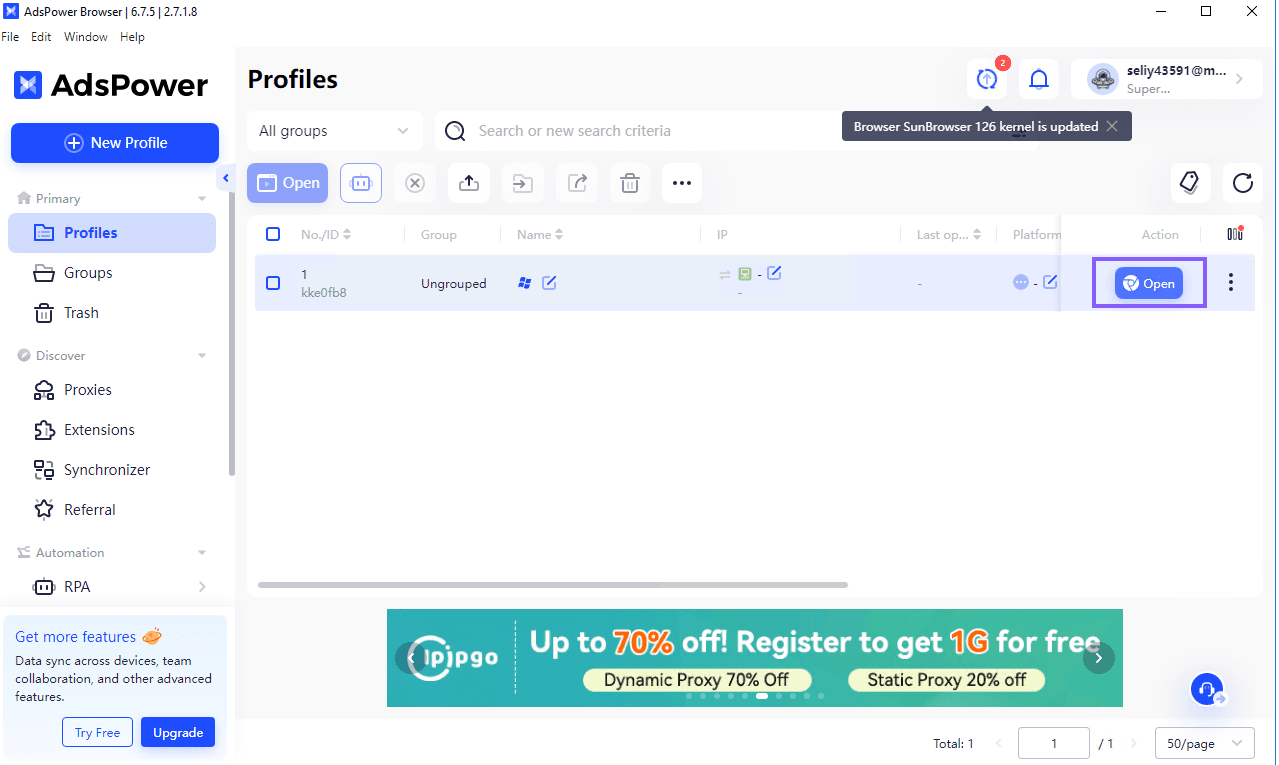
You're all set! Your AdsPower profile now browses through your ProxyPanel proxy. To pick where it connects from, choose a city with "Change location" on the proxy in your dashboard.