Integration
VMLogin Browser
VMLogin enables secure management of multiple online identities with separate virtual environments for each profile. It offers strong browser fingerprinting protection, making it ideal for e-commerce, social media marketing, and affiliate advertising. The platform supports easy automation and seamless team collaboration through profile sharing and transfer.
Setting up proxies using VMLogin
Start by downloading and installing VMLogin Browser. Create an account and log in to get started.
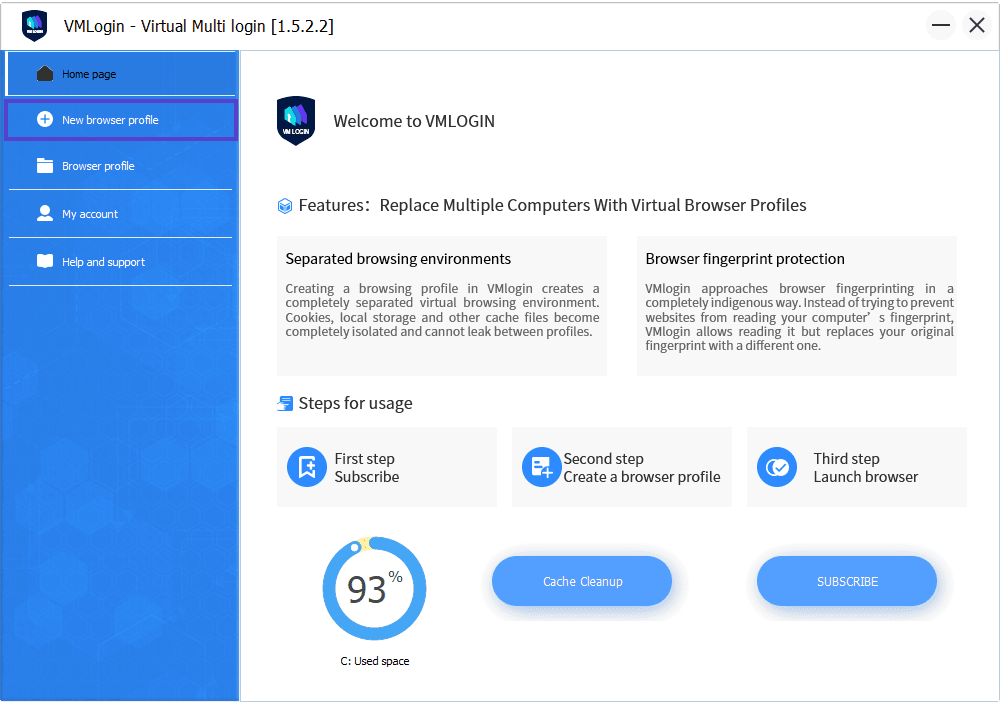
After logging in with your created account, navigate to the "Create Profile" section by clicking on the "New Browser Profile" button on the left sidebar.
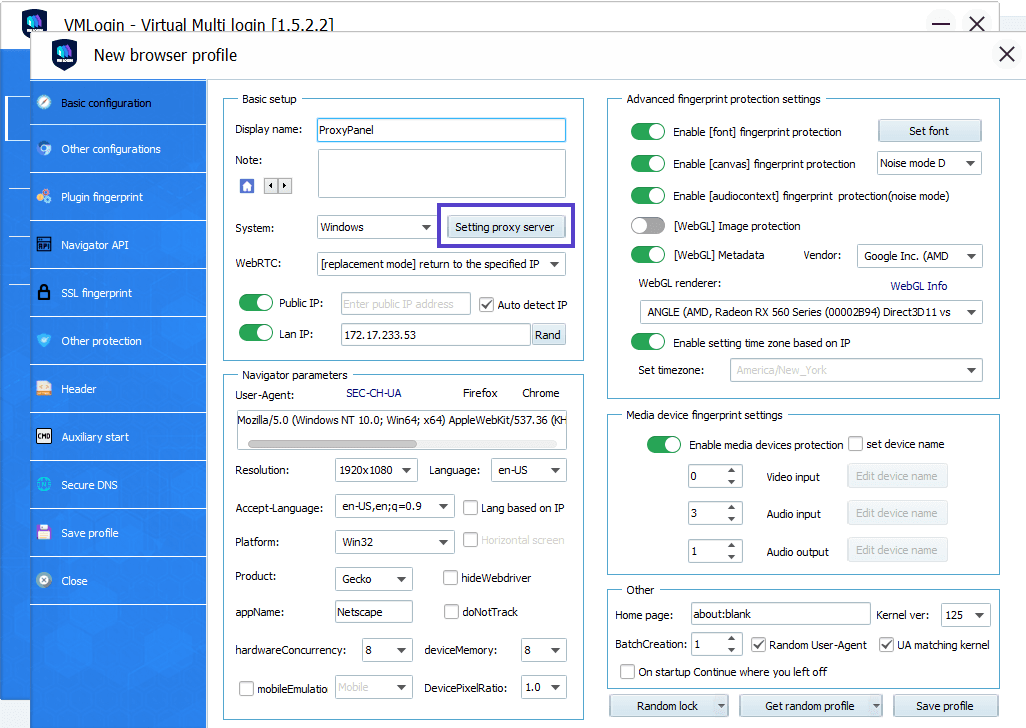
Set a name for your profile and configure the necessary settings. Then, click on "Setting proxy server" to configure your proxy settings.
Open My Proxies in your ProxyPanel dashboard, and click Start proxy if the proxy is still "Pending · starts on activation".
In the Connection column, the proxy's host appears with its HTTP port on the "HTTP proxy" line and with its SOCKS5 port on the "SOCKS5 proxy" line. Take the username and password from the Credentials column using Copy username and Copy password (the eye icon unmasks the password). You don't have to enter your account password anywhere.
Switch on "Enable proxy server" and choose the proxy type: SOCKS5 together with the SOCKS5 port, or HTTP together with the HTTP port. Fill in the IP address, port, username and password. "Paste proxy info" also takes everything at once as IP:port:username:password, which is the line the proxy's ⋮ menu → Details shows in your dashboard; its port is the SOCKS5 port, so use it with SOCKS5.
Once you've filled out all the proxy connection details, you can verify if the proxies are functioning correctly by clicking on the "Test Proxy" button. If everything is working correctly, click on "Save", then "Save profile" to save your profile.
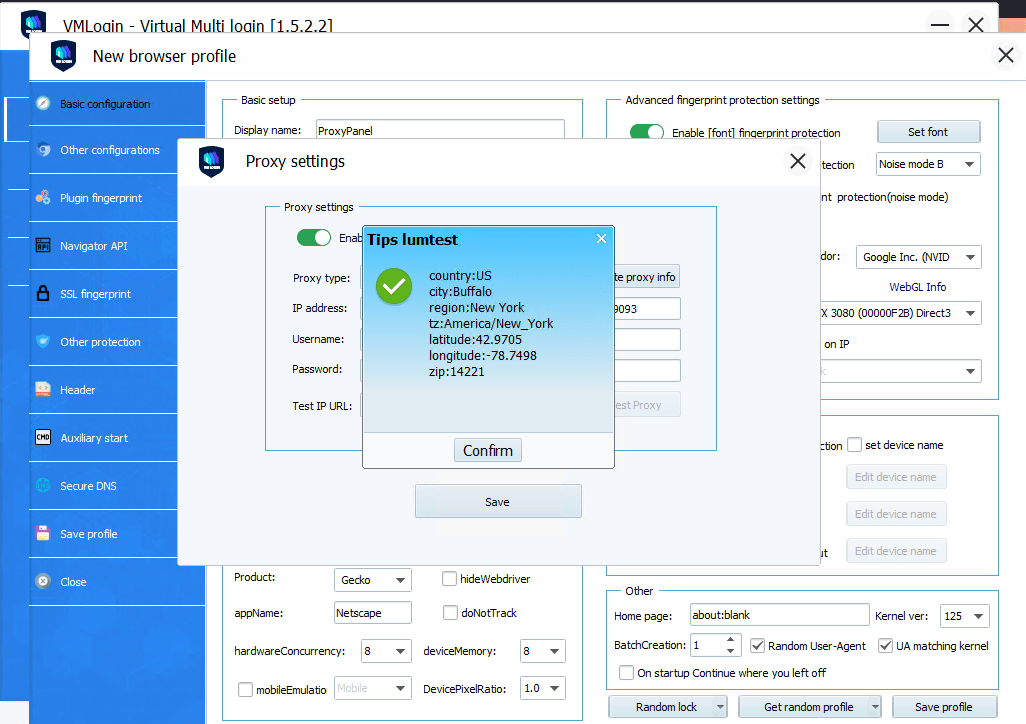
Done! Your profile will now successfully use the applied proxy for all connections within that browser.