Integration
Incogniton Browser
Incogniton is a standout anti-detect browser that offers robust online data privacy and the ability to maintain multiple browsing profiles effortlessly. Each profile has a unique digital fingerprint, effectively simulating different users on the same browser. Compatible with both Mac and Windows, Incogniton is user-friendly and provides various subscription packages tailored to individual needs, ensuring a secure and efficient browsing experience. A free starter package is available for new users.
Setting up proxies using Incogniton Browser
Start by downloading and installing Incogniton Browser. Create an account and log in to get started.
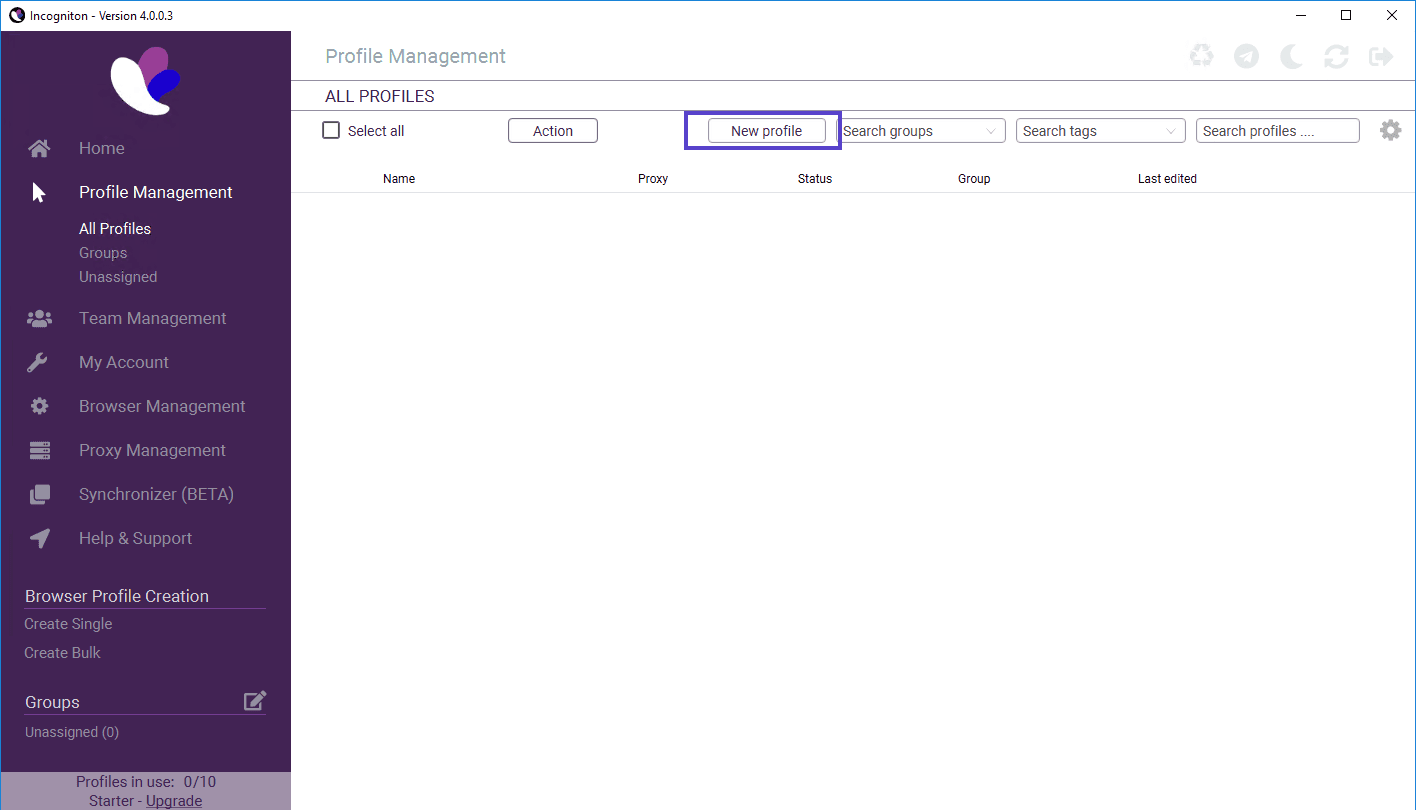
Navigate to "Profile Management" and click on "New profile" to create a new browser profile.
Open My Proxies in your ProxyPanel dashboard. A newly bought proxy shows "Pending · starts on activation" until you click Start proxy, and it won't connect before then.
The Connection column lists an "HTTP proxy" line and a "SOCKS5 proxy" line. They share one host, but each protocol has its own port. In the Credentials column, Copy username and Copy password copy your proxy login; the password is masked, and the eye icon displays it. There is no need to enter your account password.
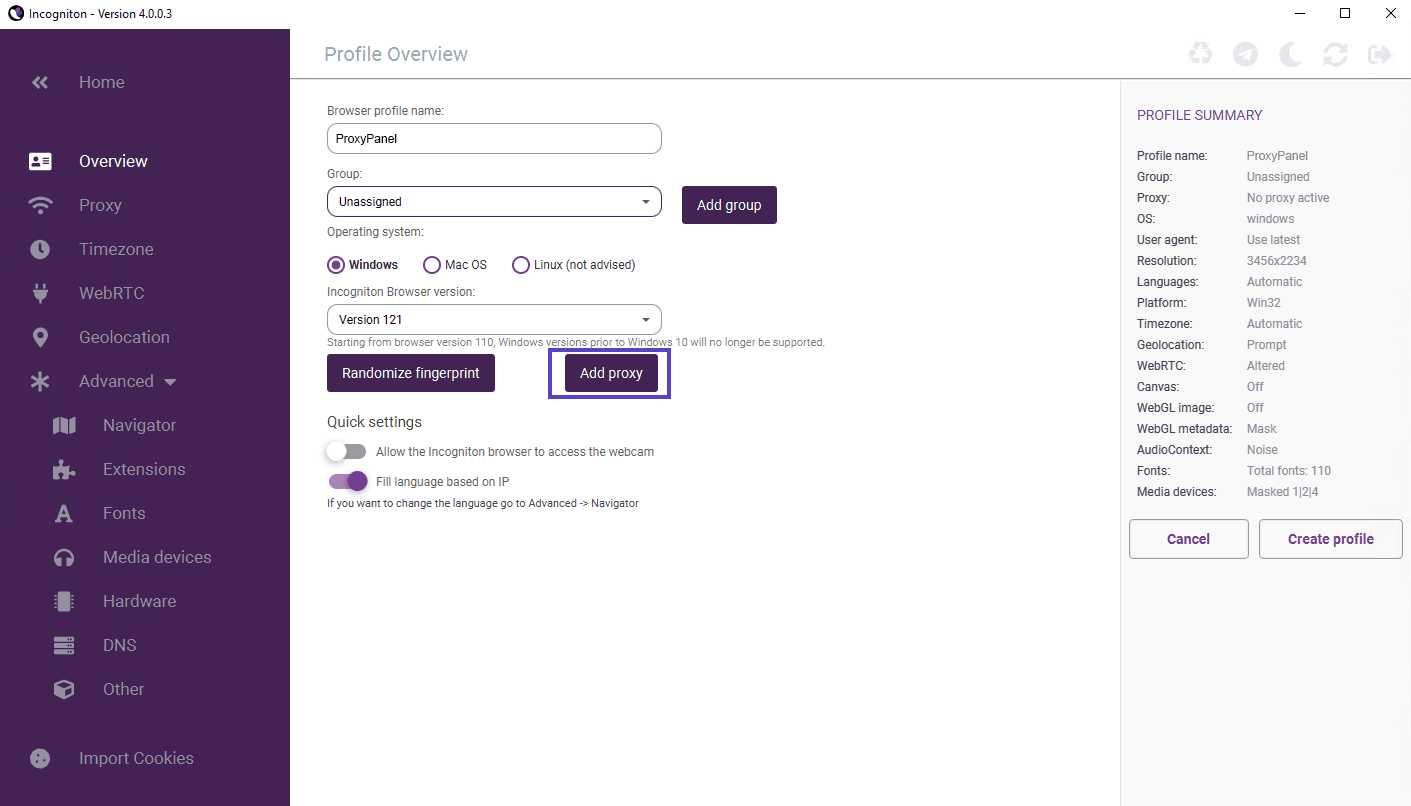
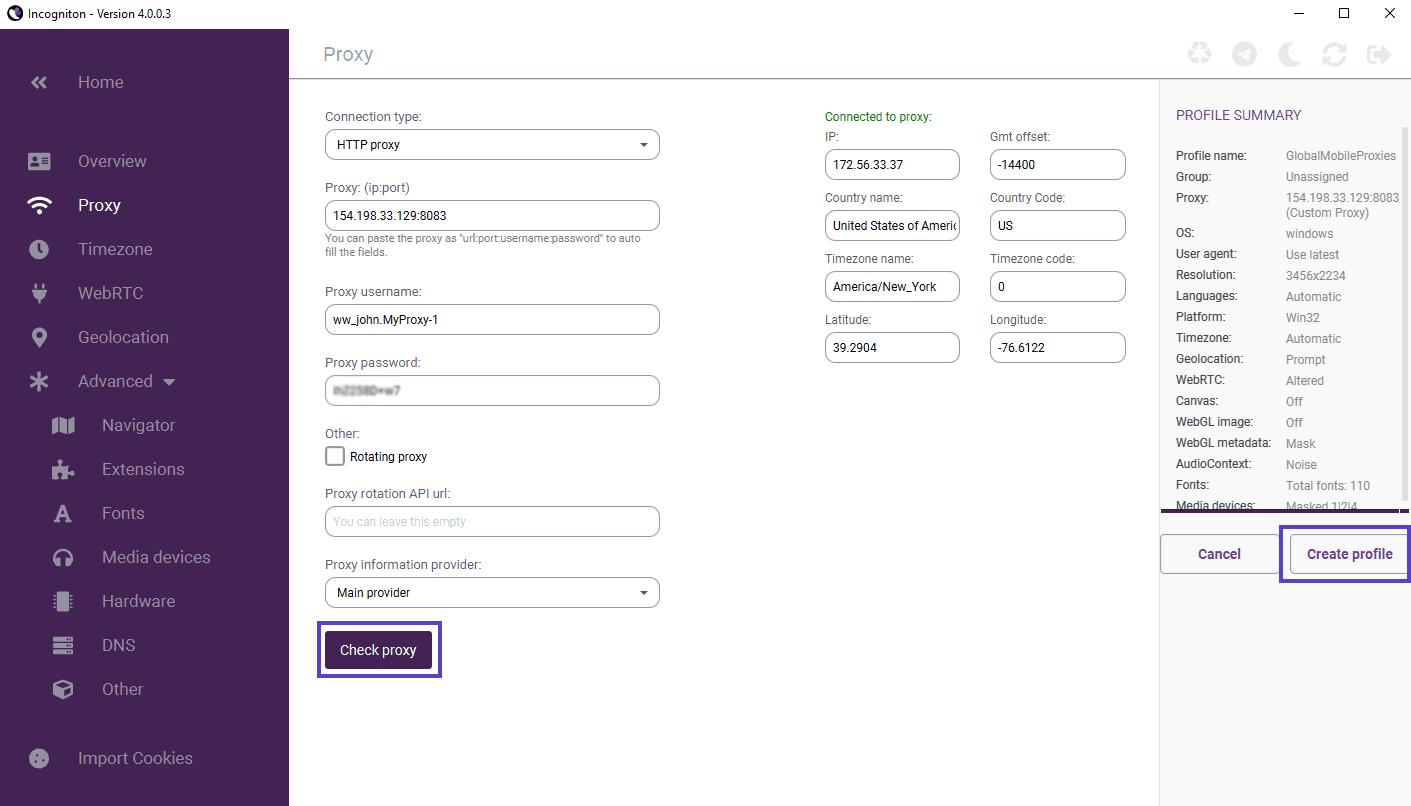
Click "Add proxy" and set the connection type. With SOCKS5, enter the host and the SOCKS5 port as host:port; if you pick the HTTP type, use the HTTP port instead. Then fill in the proxy username and password, and click "Create profile" to save your profile.
To see that everything works as expected, press "Start" and launch the browser.
That’s it! You’ve successfully integrated ProxyPanel with Incogniton Browser.