Integration
Octo Browser
Octo Browser is a powerful web browser that enables you to create multiple instances or profiles on your device. Each instance comes with its own unique browser fingerprint, allowing you to maintain separate browsing sessions simultaneously on a single device. This feature ensures that each session has its own settings and identity, enhancing privacy and versatility while browsing online.
Setting up proxies using Octo
Start by downloading and installing Octo Browser. Create an account and log in to get started.
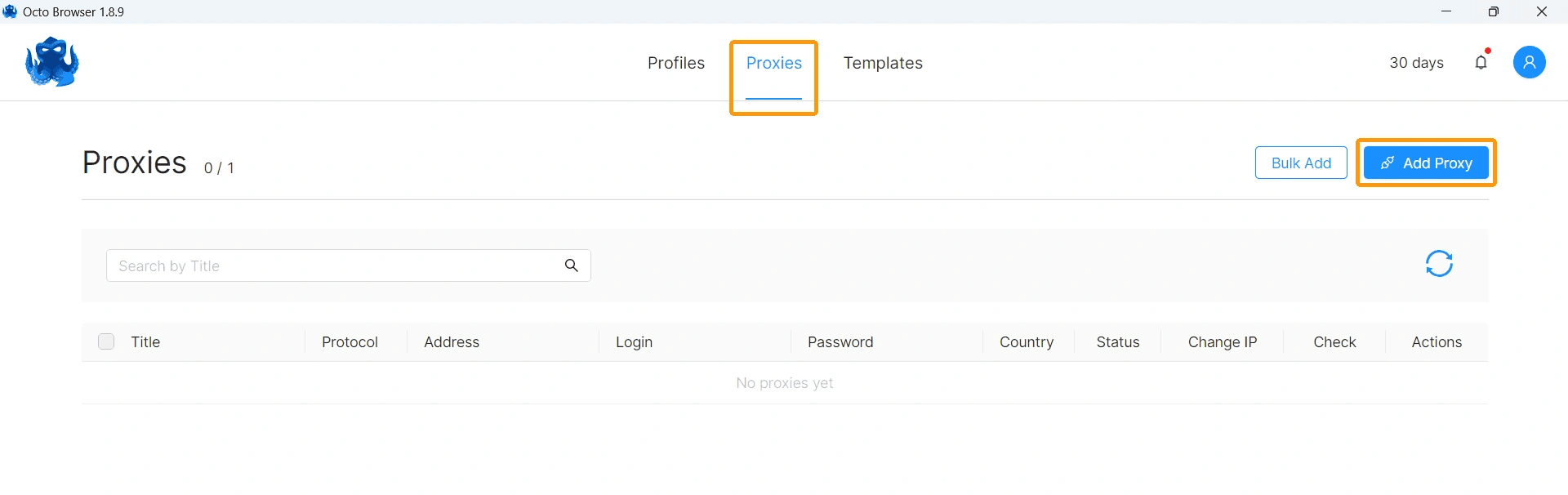
Navigate to the Proxies section and select "Add Proxy" to input your proxy configuration details.
In your ProxyPanel dashboard, go to My Proxies. Click Start proxy if the proxy still shows "Pending · starts on activation"; Octo's check can't pass before that.
Look at the Connection column: "HTTP proxy" and "SOCKS5 proxy" each show host:port, with the same host and a separate port for each protocol. The username and the masked password are under Credentials; the buttons Copy username and Copy password copy them exactly, and the eye icon reveals the password. No account password is asked for.
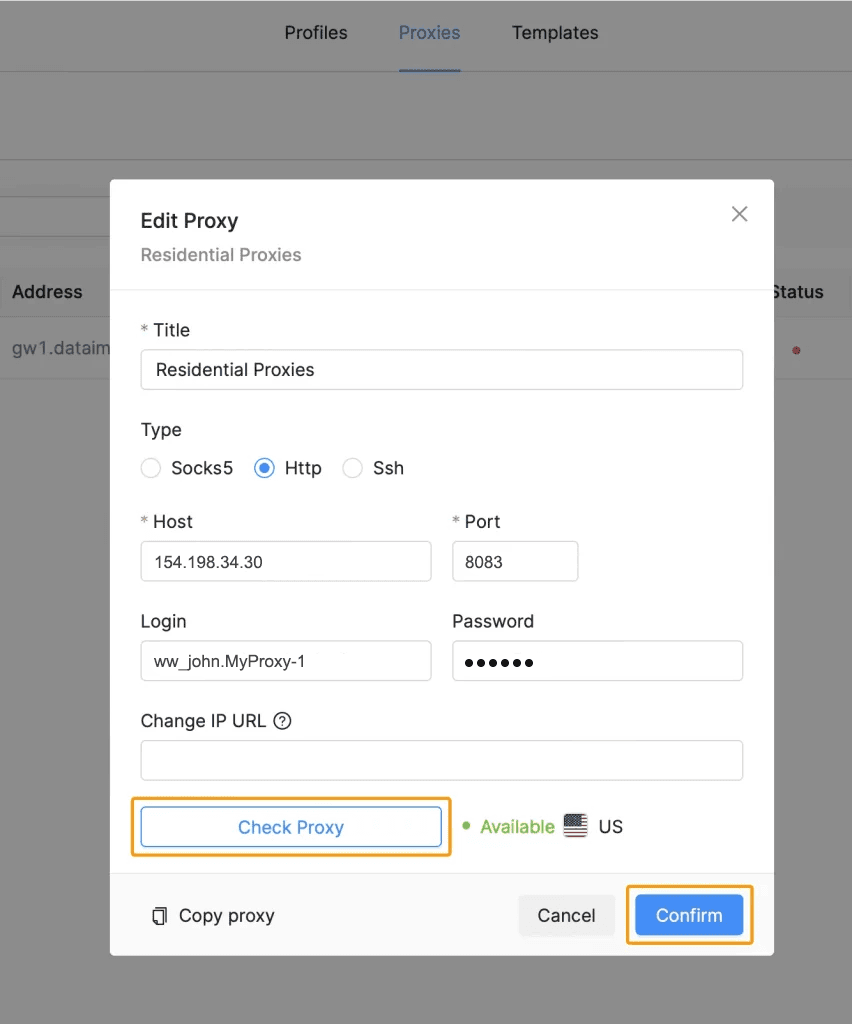
In the window that appears, give the proxy a title and choose its type: Socks5 with the SOCKS5 port, or Http with the HTTP port. Then fill in Host, Port, Login and Password.
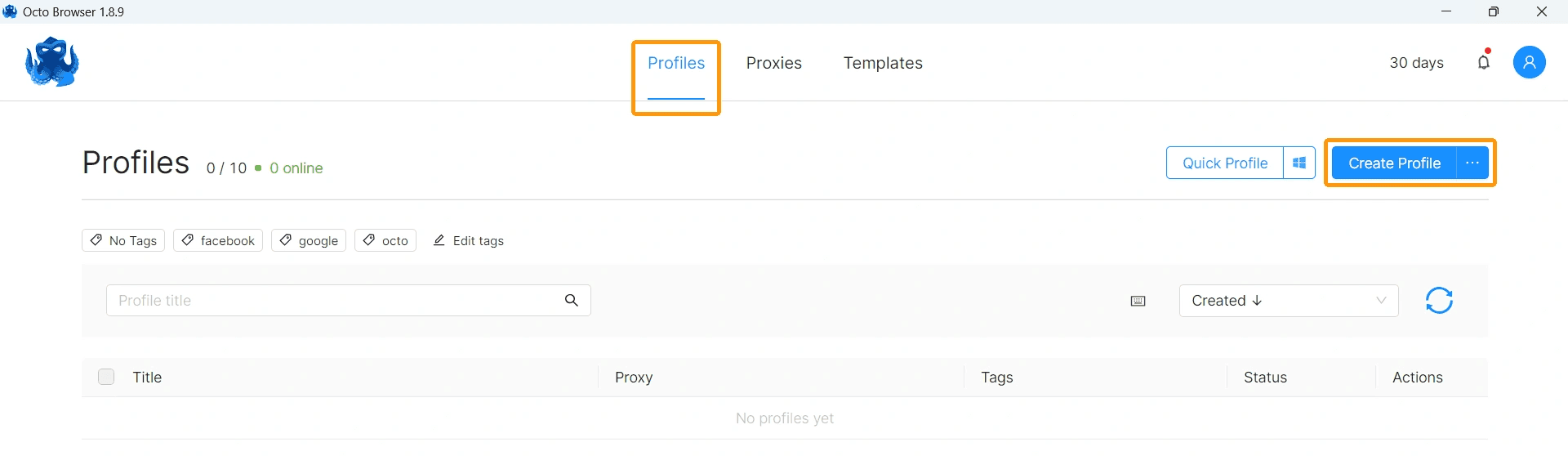
Navigate to the Profiles section and select "Create Profile" to initiate the setup of a new profile. Customize your profile by adjusting settings related to user agents, cookies, and hardware/software parameters to suit your preferences.
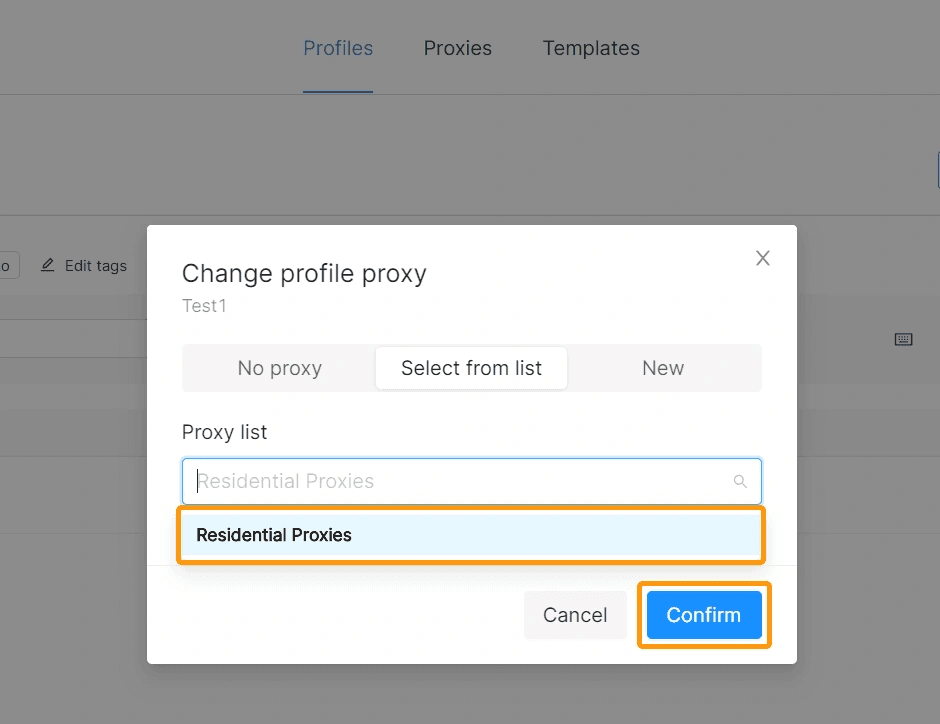
Once your profile is configured, you can assign a pre-configured proxy to it. Open the profile's connection settings while creating or editing it, and pick the saved proxy with "Select from list".
Finally, click on the ▶Start button to launch a new instance of the Chromium browser with your configured profile and proxy settings.
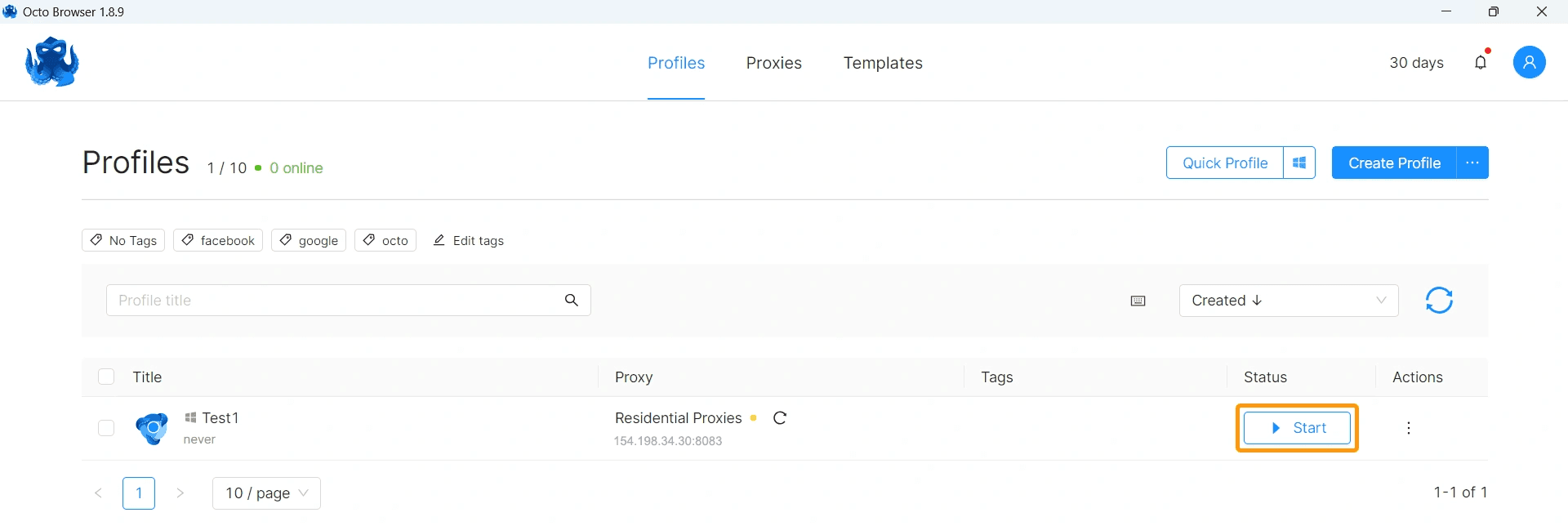
That’s it! You’ve successfully integrated ProxyPanel with Octo Browser.