Integration
Android Devices
On Android devices, connecting via a cellular network allows you to utilize proxies for bypassing geo-restrictions, protecting your IP address, and blocking malware from accessing your device directly.
Setting up Proxies Using a Cellular Phone
Configure proxies on Android by navigating to Settings > Mobile Network.
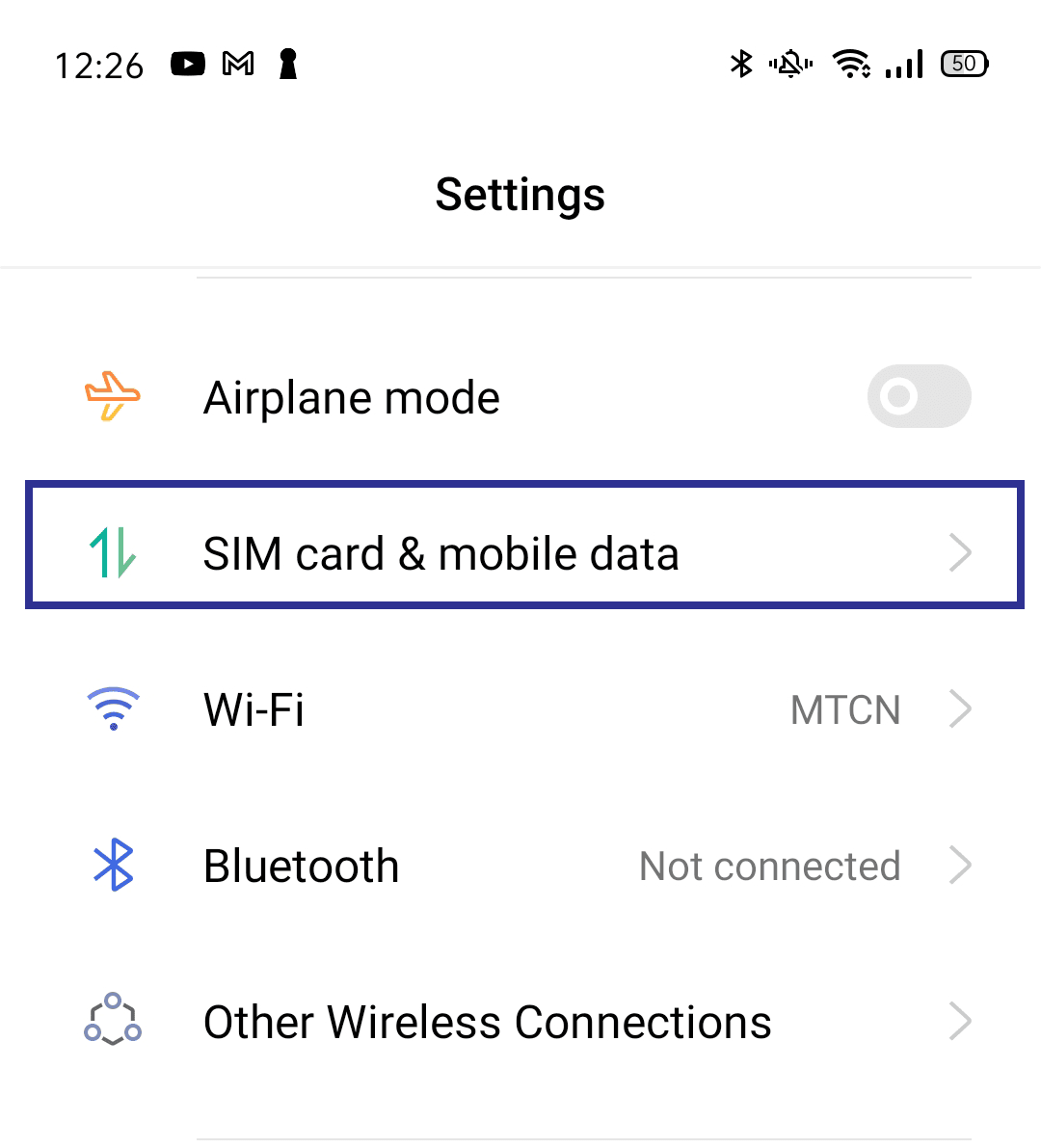
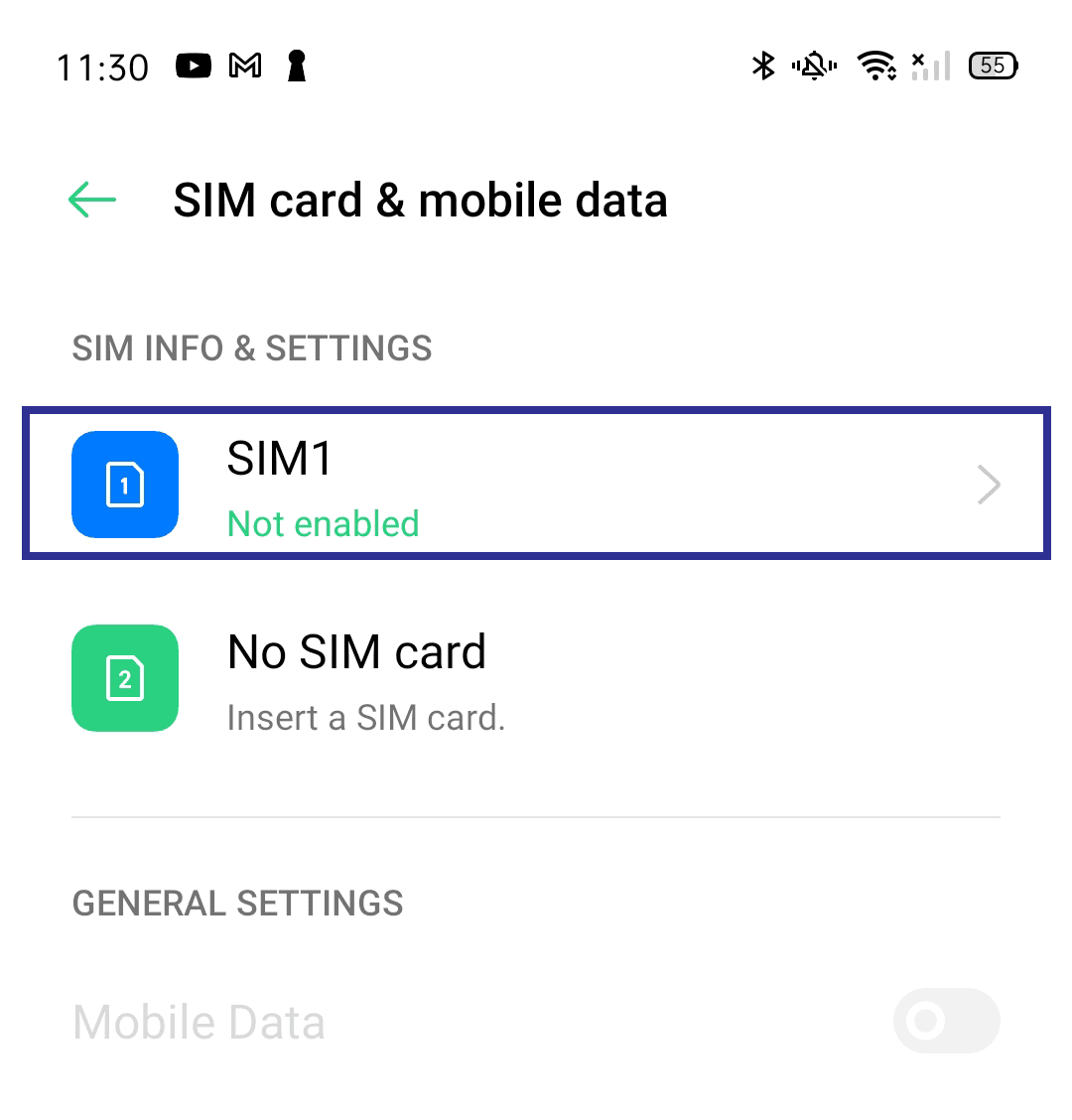
Select the SIM card you want to configure for proxy settings.
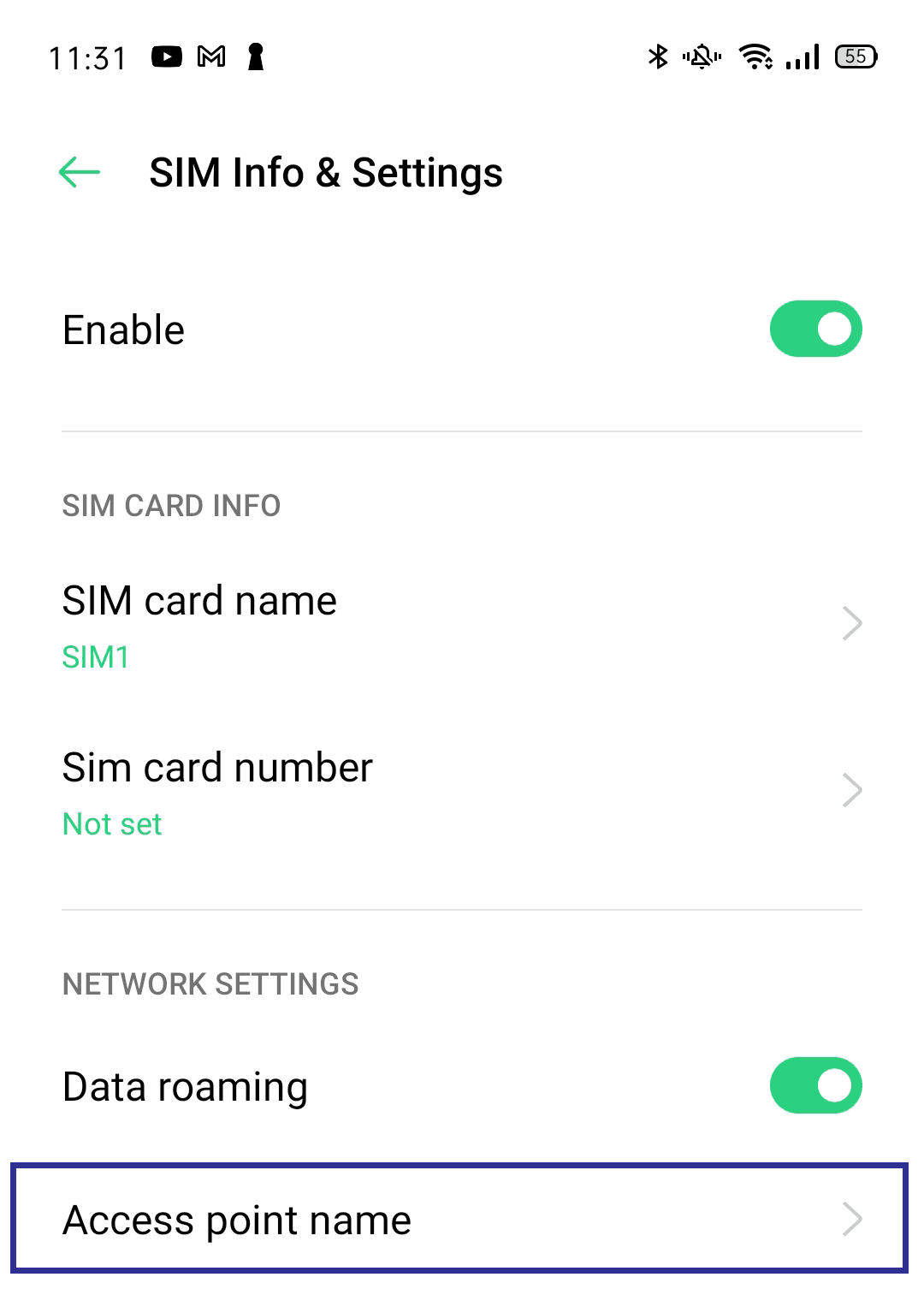
Navigate to Access Point Names (APNs).
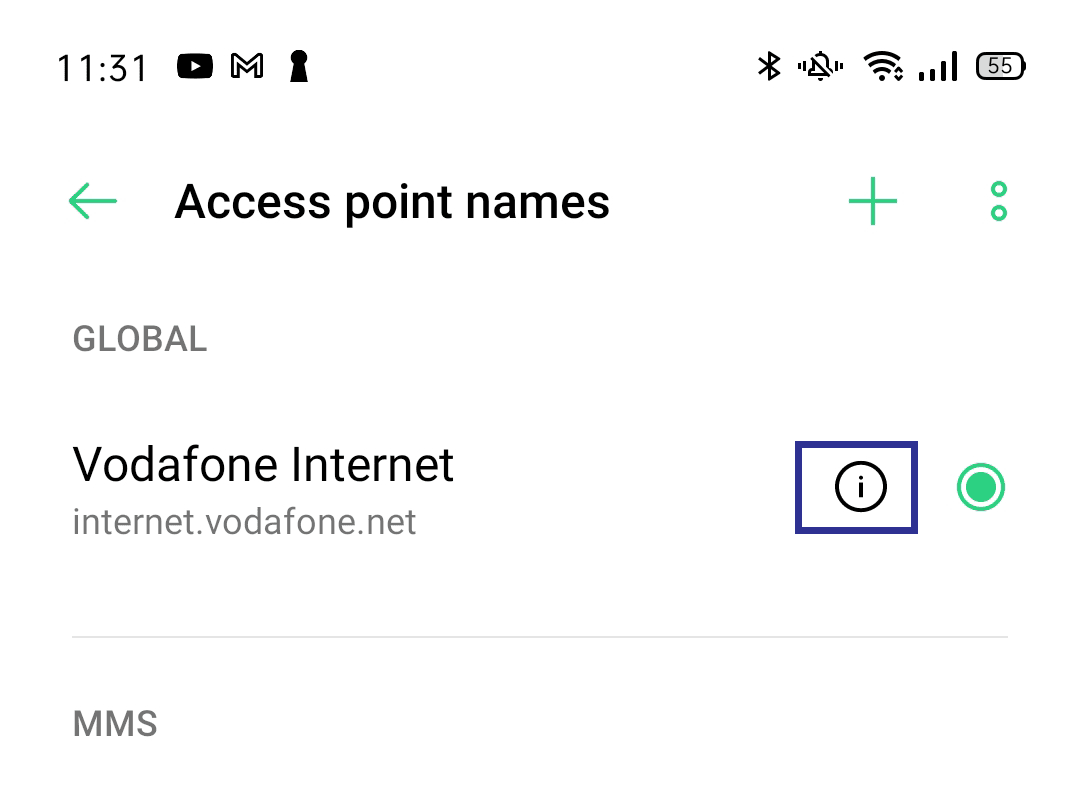
Tap on the information icon (i) next to your network provider's name.
Sign in to your dashboard and open "My Proxies". If your proxy shows "Pending", press "Start proxy" first. The host and the HTTP port are on the proxy's "HTTP proxy" line (host:port).
Your proxy username is under "Credentials" ("Copy username"). The password is masked: tap the eye icon ("Show / hide") to see it, or "Copy password" to copy it. Your account password is not needed for this.
Use the provided data from your dashboard to fill in the APN's proxy settings:
- Proxy: the host (the IP address before the colon)
- Port: the HTTP port. The SOCKS5 port does not work in this field.
Leave the APN's own Username and Password fields as they are; they belong to your carrier, not to your proxy.
Confirm your settings by tapping the checkmark icon at the top right (on some phones, open the ⋮ menu and tap Save).
Setting up Proxies on Wi-Fi
The APN proxy only covers mobile data. When your phone is on Wi-Fi, each Wi-Fi network has its own proxy setting:
Go to Settings > Network & internet > Internet (called Wi-Fi or Connections on some phones).
Tap your Wi-Fi network, then tap the Edit (pencil) icon.
Open Advanced options and set Proxy to Manual.
Enter the host as Proxy hostname and the HTTP port as Proxy port, then tap Save.
Upon opening your browser, it asks for the proxy's username and password: enter the credentials from "My Proxies" and proceed to sign in. Apps that cannot show such a sign-in prompt will not connect through the proxy.