Integration
IOS Devices
Shadowrocket stands at the forefront of iOS applications, offering a rich array of features tailored to elevate user experience and bolster online security. From seamlessly capturing web traffic to recording HTTP, HTTPS, and DNS requests, Shadowrocket provides a versatile platform for managing online activities. Its customizable rule sets, based on criteria such as domain matches and GeoIP lookups, empower users to tailor their browsing experience. Furthermore, Shadowrocket encompasses traffic measurement tools, ad-blocking functionalities, and supports a diverse range of plugins like kcptun and v2ray. With its compatibility across cellular networks, HTTPS traffic decryption capabilities, and robust IPv6 support, Shadowrocket emerges as the go-to solution for iOS users seeking comprehensive proxy management.
Setting up proxies using Shadowrocket
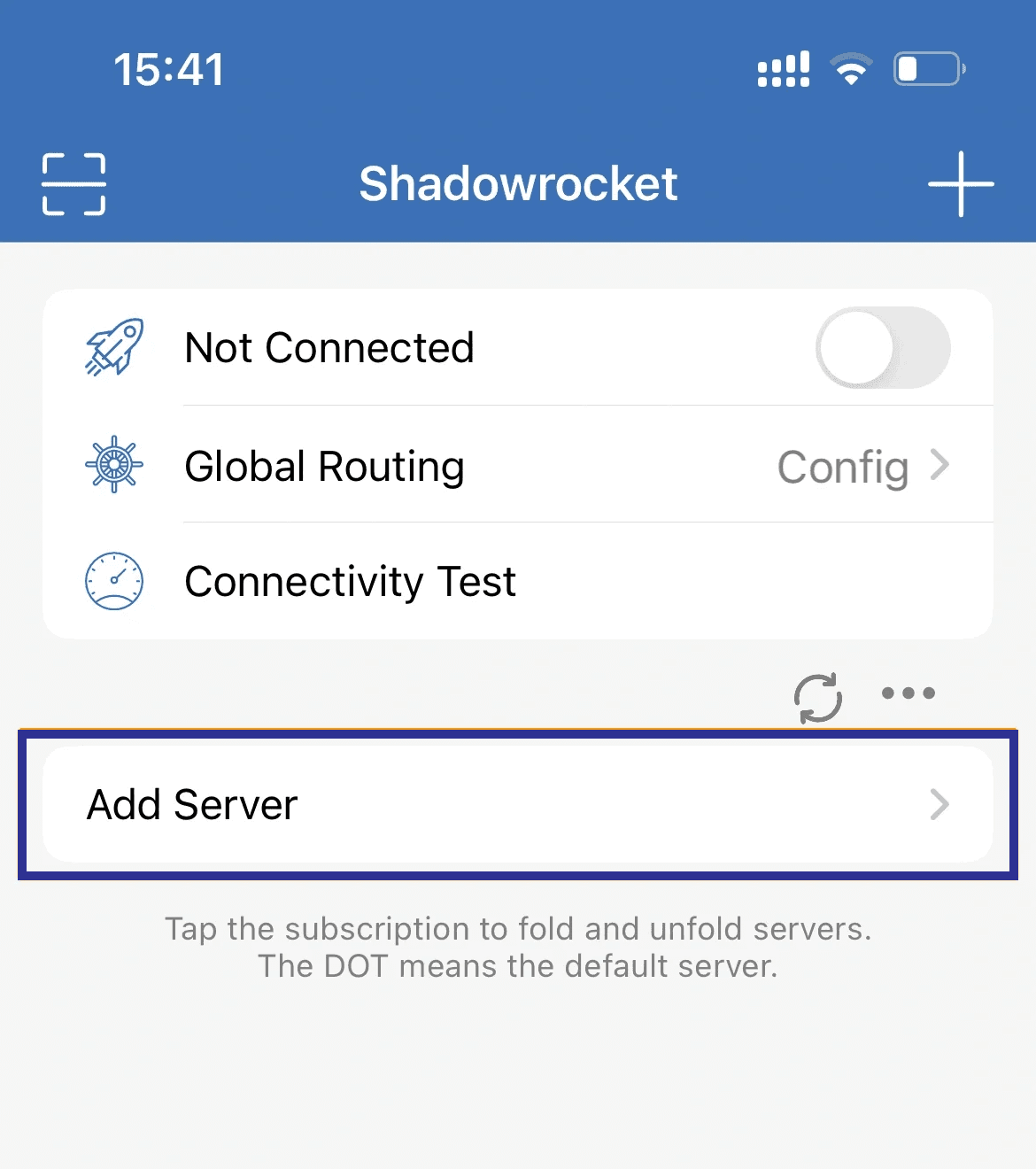
To start using proxy servers with Shadowrocket, open the Shadowrocket app and select "Add Server" (or the + button in the top right corner).
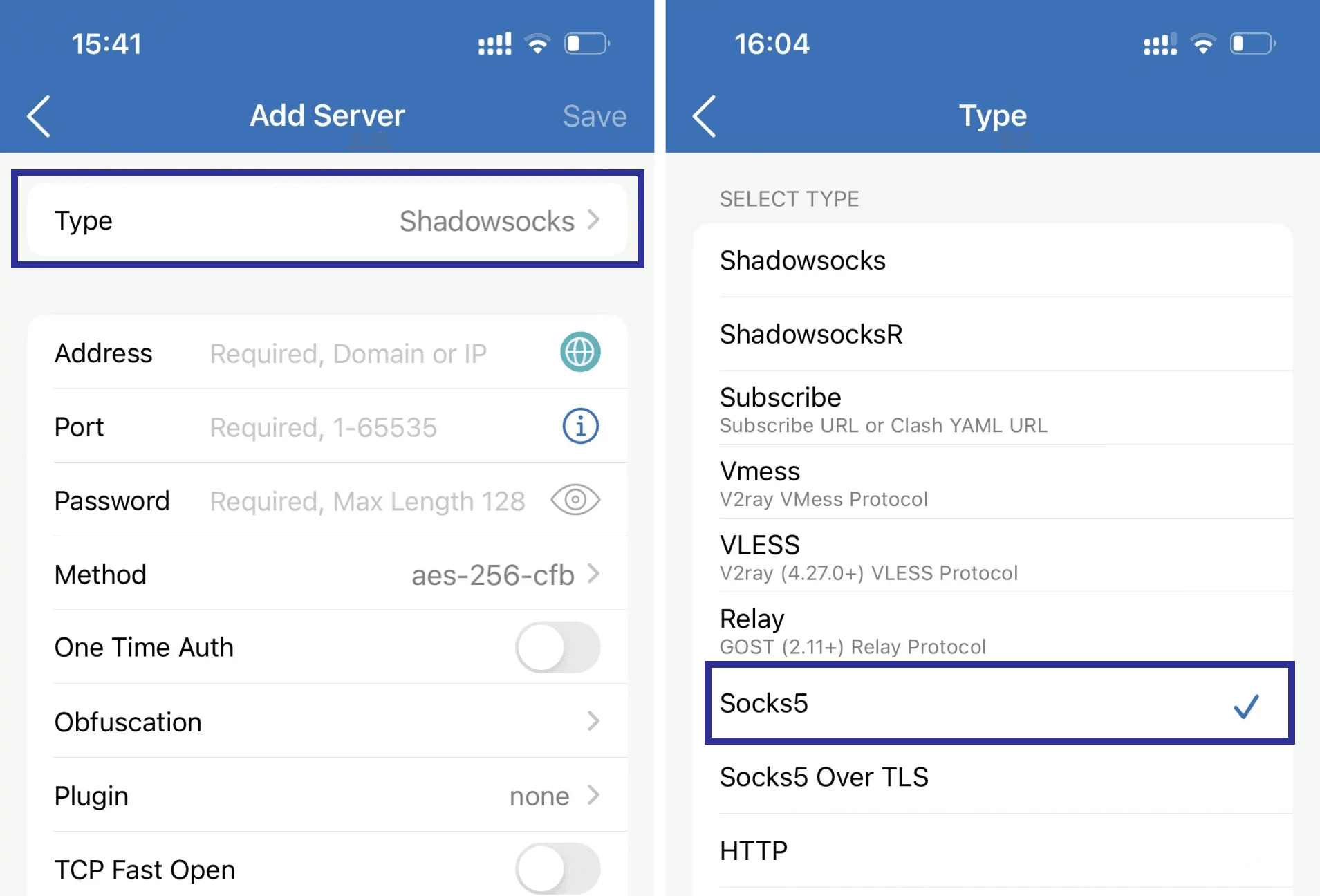
In the next window, tap "Type". Select "Socks5" if you require a SOCKS5 connection for your applications. Alternatively, choose "HTTP" if you need to connect to HTTP-based services.
Sign in to your dashboard and open "My Proxies". If your proxy shows "Pending", press "Start proxy" first. Each proxy lists an "HTTP proxy" line and a "SOCKS5 proxy" line in host:port form; the host is the same on both, only the port differs.
Your proxy username sits under "Credentials" next to a "Copy username" button. The password is masked: tap the eye icon ("Show / hide") to see it, or "Copy password" to copy it. Your account password is not needed for this.
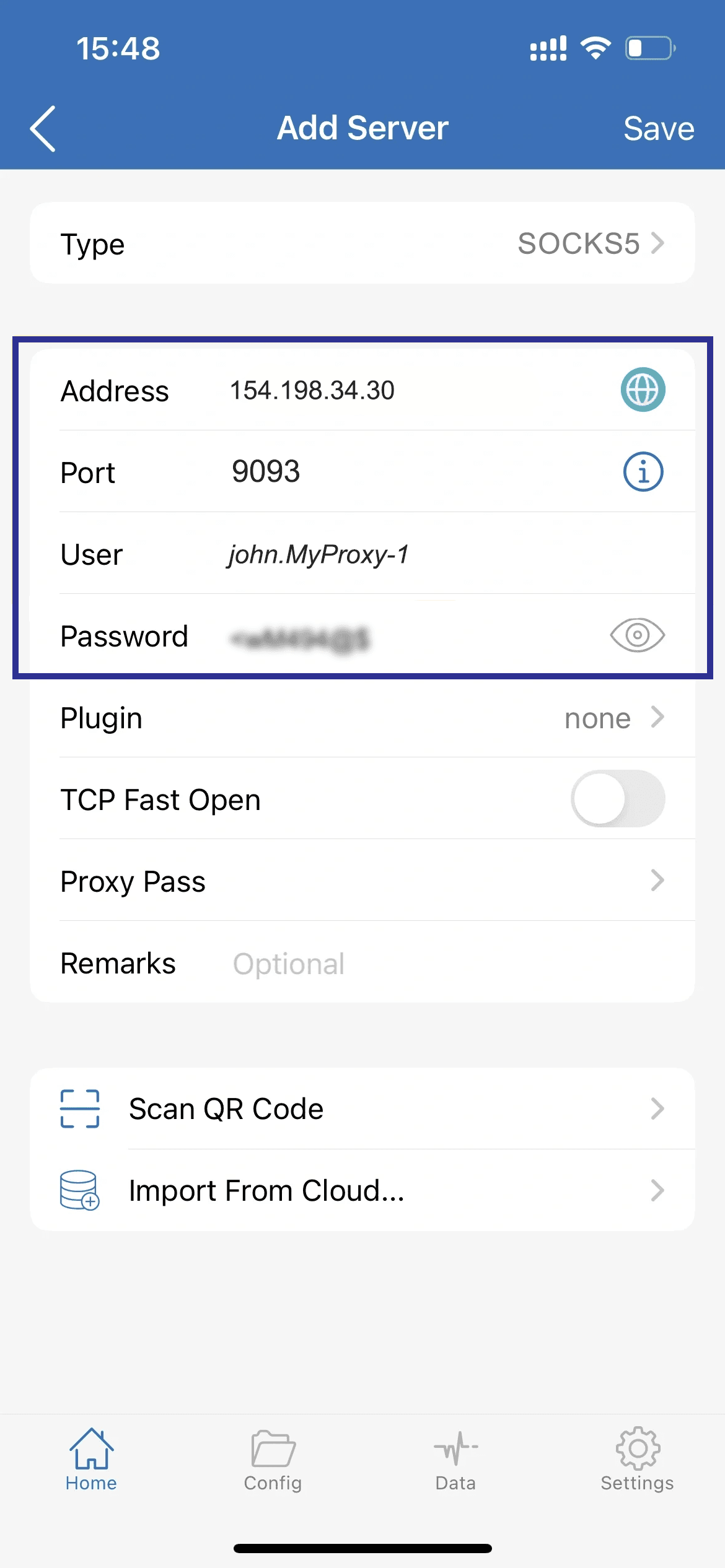
Use the provided data from your dashboard to fill in the proxy settings: the host goes in "Address", then fill in "Port", "User" and "Password", and tap "Save". The port must match the type you chose:
- For HTTP, use the HTTP port from the "HTTP proxy" line
- For Socks5, use the SOCKS5 port from the "SOCKS5 proxy" line
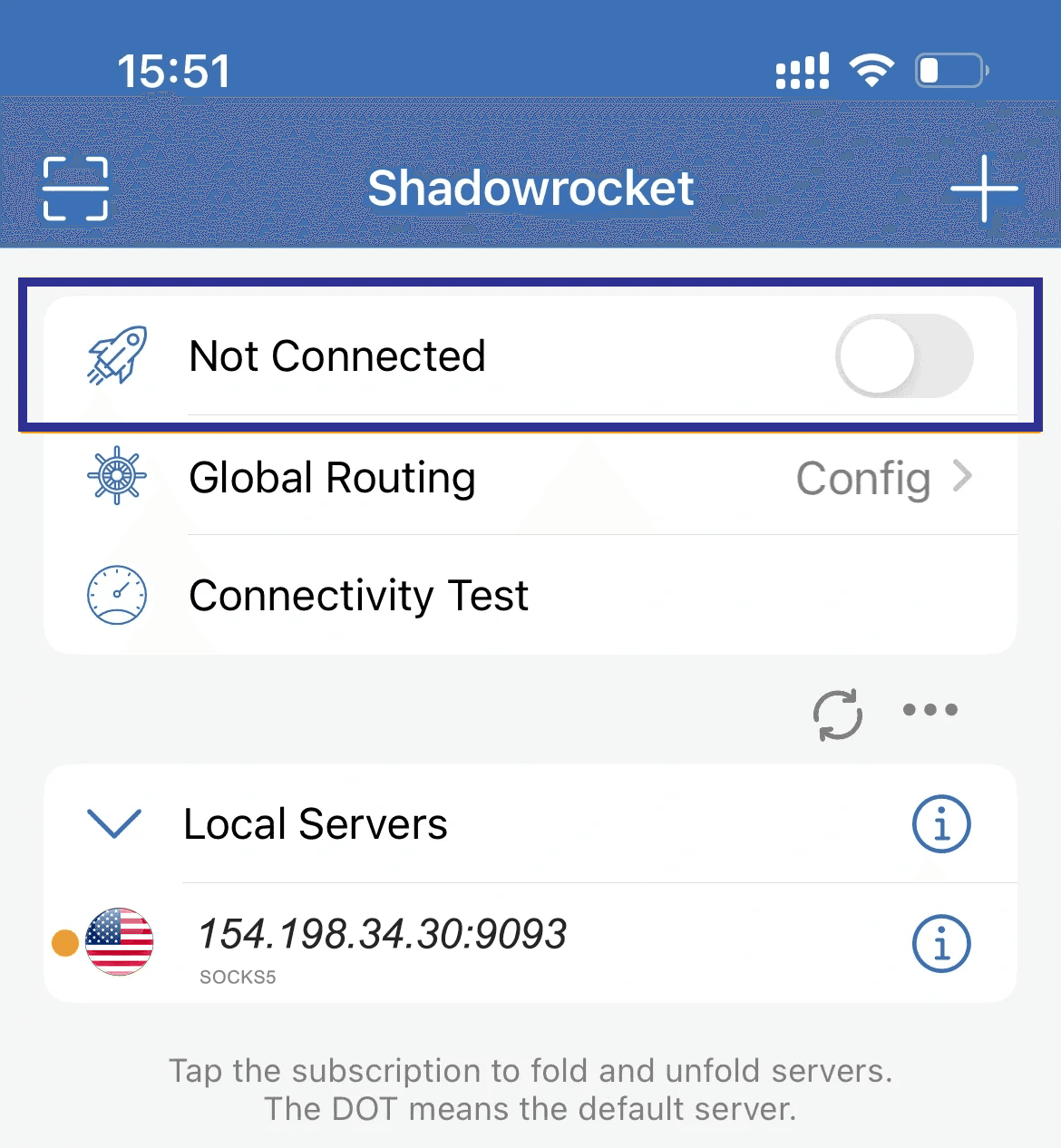
Activate Proxy: after you have filled in the proxy details, select your server in the list and turn on the switch next to "Not Connected" at the top of the home screen. Turn the same switch off to go back to your normal connection.
If this is your first time using Shadowrocket, iOS asks whether the app may add VPN configurations. Tap Allow, then enter your iPhone's passcode (or use Face ID or Touch ID) to confirm.