Introduction
Understanding IP Blocking: An Essential Guide
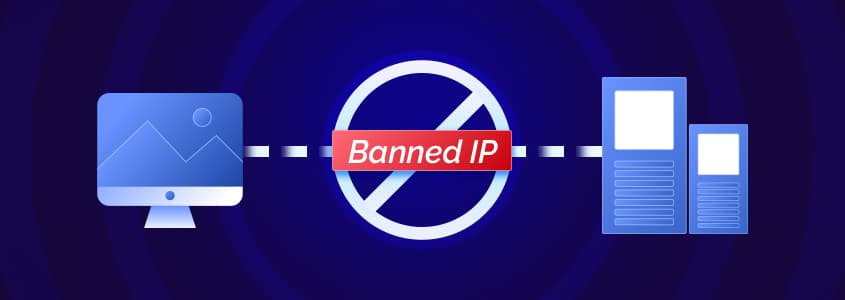
IP blocking is a common practice in the digital world, employed by websites and online services to manage traffic and protect against malicious activities. This technique involves preventing specific IP addresses from accessing a website, server, or network, thereby controlling who can and cannot reach the online resource. While IP blocking serves crucial security purposes, it can also affect legitimate users and businesses in unexpected ways. In this blog, we'll delve into the reasons behind IP blocking and what you can do from your proxy dashboard when a website blocks you.
Why Is My IP Address Blocked?
IP address blocking can occur for various reasons, often related to security and policy enforcement by websites and online services. Understanding why your IP address might be blocked can help you address the issue and regain access. Here are some common reasons for IP address blocking:
- Suspicious Activity: If your IP address is detected engaging in activities that resemble hacking, spamming, or other malicious behavior, it may be blocked to protect the website and its users.
- Violation of Terms of Service: Accessing a site in a manner that violates its terms of service, such as using automated tools to scrape data, can lead to an IP block.
- Excessive Requests: Making too many requests to a server in a short period can be seen as a DDoS (Distributed Denial of Service) attack, prompting a block to safeguard the server's performance and availability.
- Geolocation Restrictions: Some content and services are restricted to specific regions. If your IP address is from a blocked location, you will not be able to access the site.
- Blacklist Inclusion: Your IP address might be on a blacklist due to its association with previous malicious activity, even if you were not responsible for it.
- Security Protocols: Advanced security measures like firewalls and intrusion detection systems might automatically block IP addresses that trigger certain security rules.
Understanding these reasons can help you take appropriate actions, such as contacting the website administrator, using a VPN, or changing your IP address to restore access.
Getting a New IP with ProxyPanel
If a website blocks the IP of one of your proxies, you can replace it from "My Proxies" in your dashboard. These options work once the proxy has been started:
- Change IP: click "Change IP" on the proxy, or choose "Rotate IP now" from its ⋮ menu. Your city and carrier stay as they are while the IP changes, which normally takes between 30 and 90 seconds. You can repeat it once every 60 seconds.
- Change location: open "Change location" from the ⋮ menu (or by clicking where the proxy is located), search for a city, and click "Connect" on a row with free phones. "Random city" picks one for you. After moving, wait roughly 3 minutes before you move the proxy again.
- Automatic rotation: set an interval in the Rotation column so the IP changes on its own. The IP Rotation Guide explains every option.
Before you blame the IP, check which address the website actually sees by opening an IP lookup page in the same browser or script. Each lookup service relies on its own location data, so a mobile IP may be placed somewhere other than the city you chose; that's normal for mobile networks.
Final Thoughts
IP blocking serves an important function in safeguarding online environments, benefiting both businesses and individual users. If you encounter a block on your favorite websites, a fresh IP from your ProxyPanel dashboard is usually the quickest fix. Remember that a new IP can't help when the block is on your account, or when the site recognizes your browser by its cookies, so clear the site's cookies or use a fresh browser profile as well, and slow down if you're sending a lot of requests. At ProxyPanel, we are dedicated to providing solutions that keep you connected, and our support team at [email protected] is happy to help if a proxy won't load any site at all.