Integration
HideMyAcc Browser
HideMyAcc Anti-Browser offers the most advanced browser fingerprinting technology, enabling you to hide your real identity and create multiple new identities without detection. On a single computer, you can run multiple accounts without being banned. This tool provides an authentic user experience with a unique browser fingerprint, achieving high scores on CreepJS, PixelScan, and BrowserLeaks.
Setting up proxies using HideMyAcc
Start by downloading and installing HideMyAcc Browser. Create an account and log in to get started.
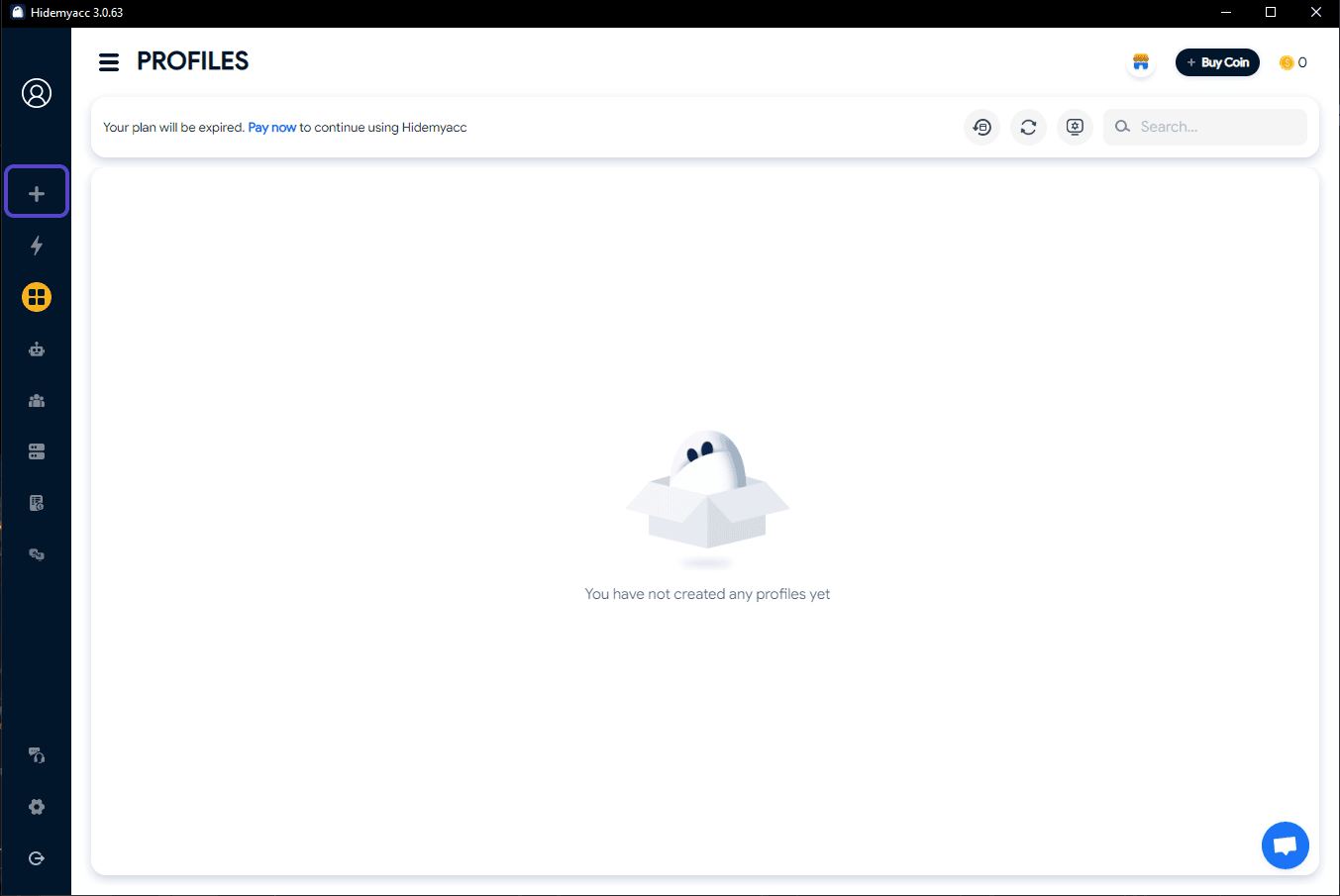
After logging in using your created account, navigate to the "Create Profile" section by clicking on the plus icon on the left sidebar
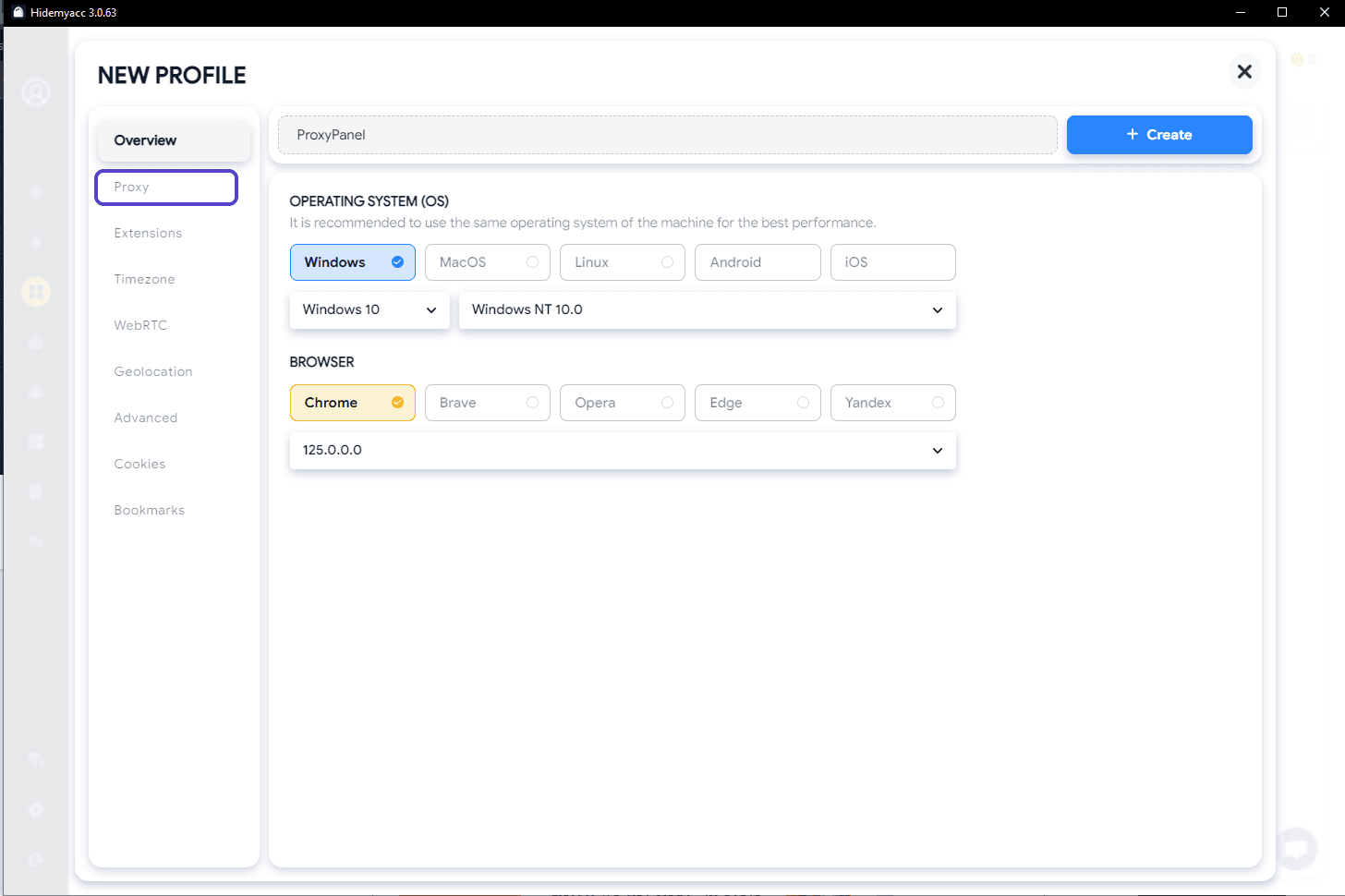
Set a name for your profile and configure the necessary settings. Then, click on "Proxy" on the left sidebar to configure your proxy settings.
Sign in to your ProxyPanel dashboard and go to My Proxies. When a proxy reads "Pending · starts on activation", click Start proxy to begin its time; it doesn't connect before that.
The "HTTP proxy" and "SOCKS5 proxy" lines in the Connection column give the same host with a different port for each protocol. Your proxy username and password are in the Credentials column: Copy username and Copy password copy them, and the eye icon shows the masked password. You won't need your account password.
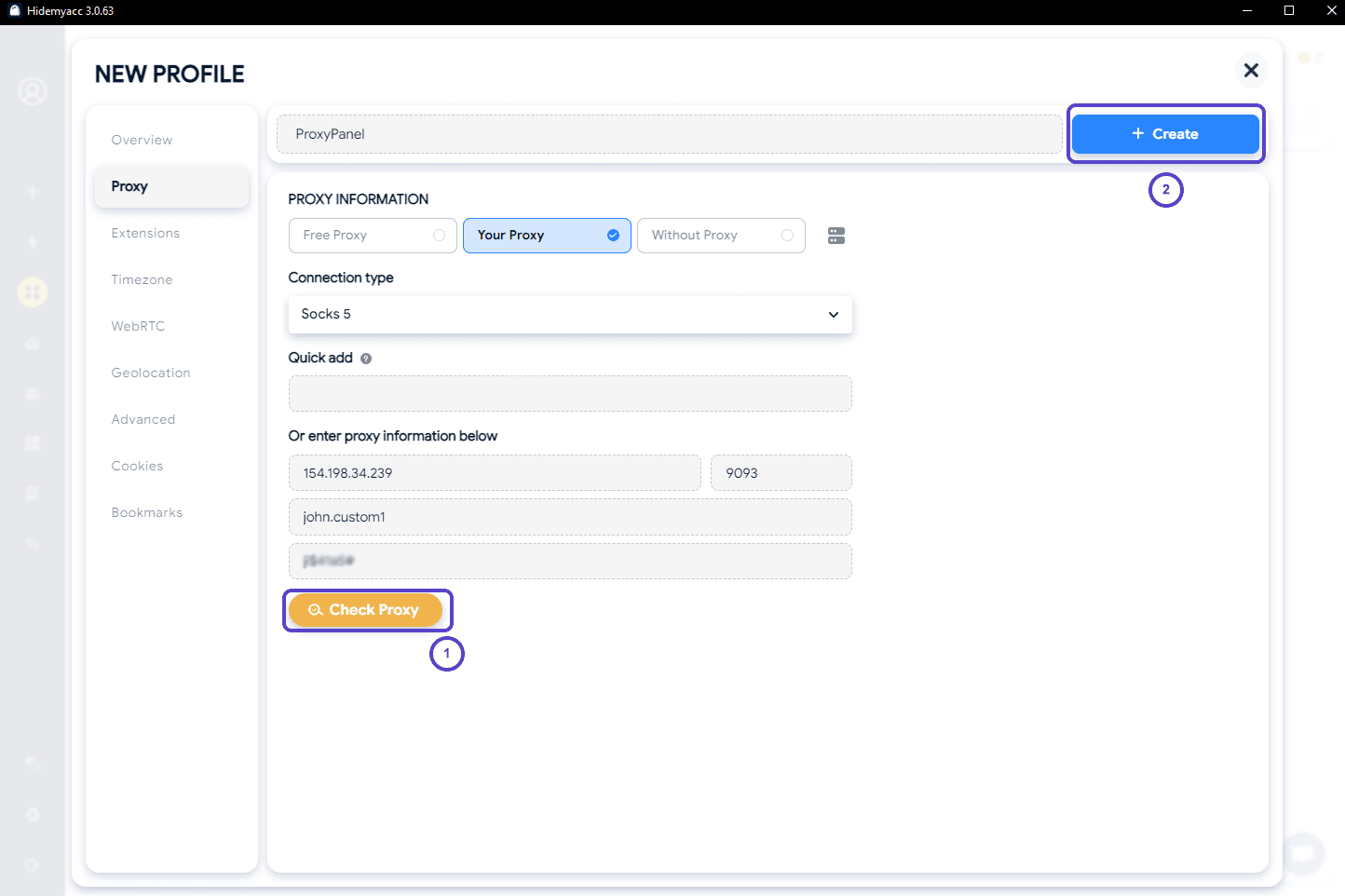
Select "Your Proxy" and set the connection type: Socks 5 with the SOCKS5 port, or HTTP with the HTTP port. Enter the host, port, username and password, then click the "Create" button to save your profile.
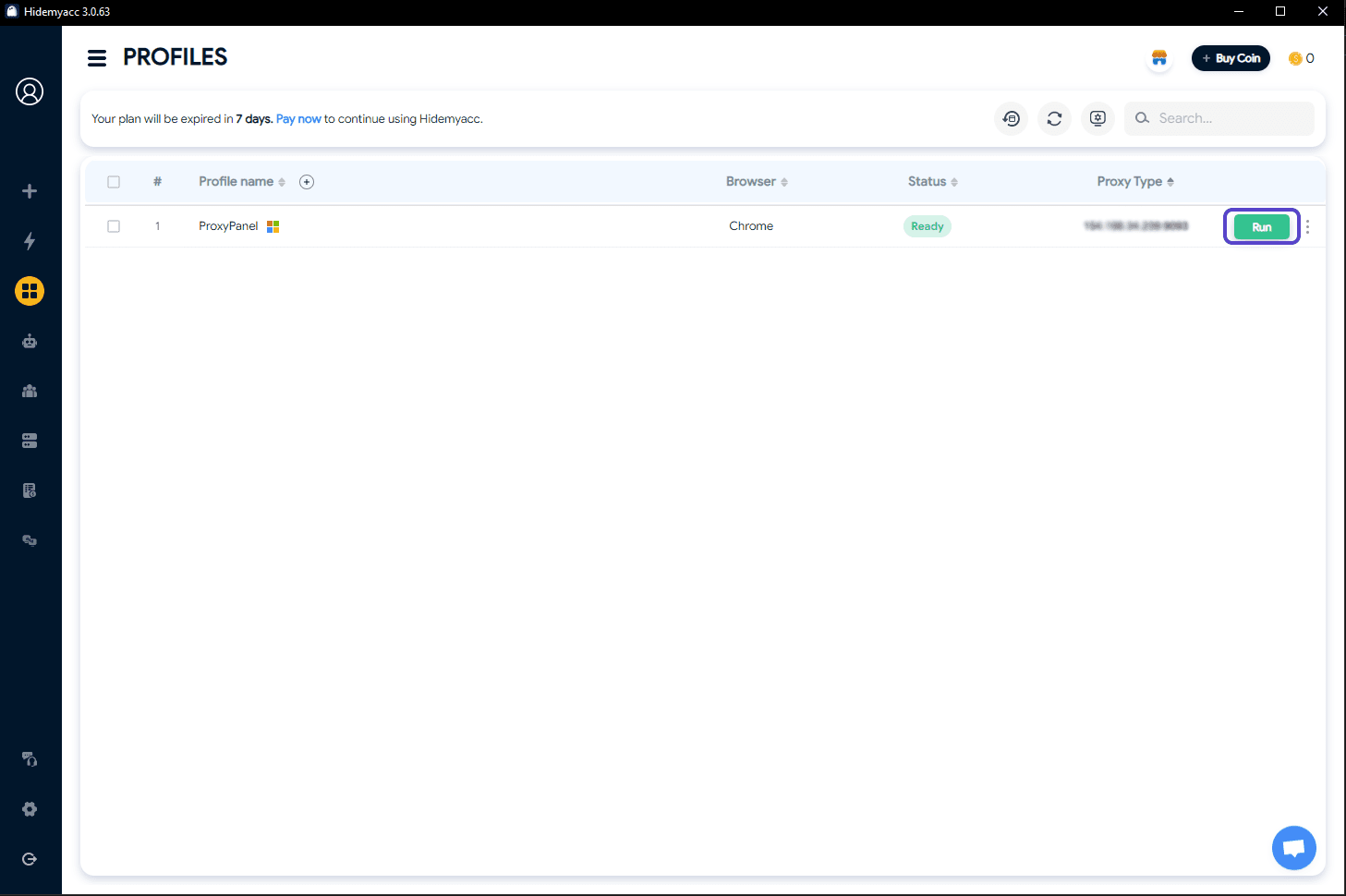
To see that everything works as expected, press "Run" and launch the browser.
That’s it! You’ve successfully integrated ProxyPanel with HideMyAcc Browser.