Integration
Firefox
Mozilla Firefox is a versatile and privacy-focused browser that offers a high degree of customization and robust performance. Known for its strong security features and extensive add-ons, Firefox provides a user-friendly experience with enhanced privacy controls. This guide will help you install Firefox, configure its proxy settings, and utilize its features effectively. Whether you're looking to improve security, manage multiple accounts, or optimize your browsing experience, Firefox delivers a comprehensive solution.
Setting up proxies using Firefox Browser
Download and install Firefox from the official website onto your device.
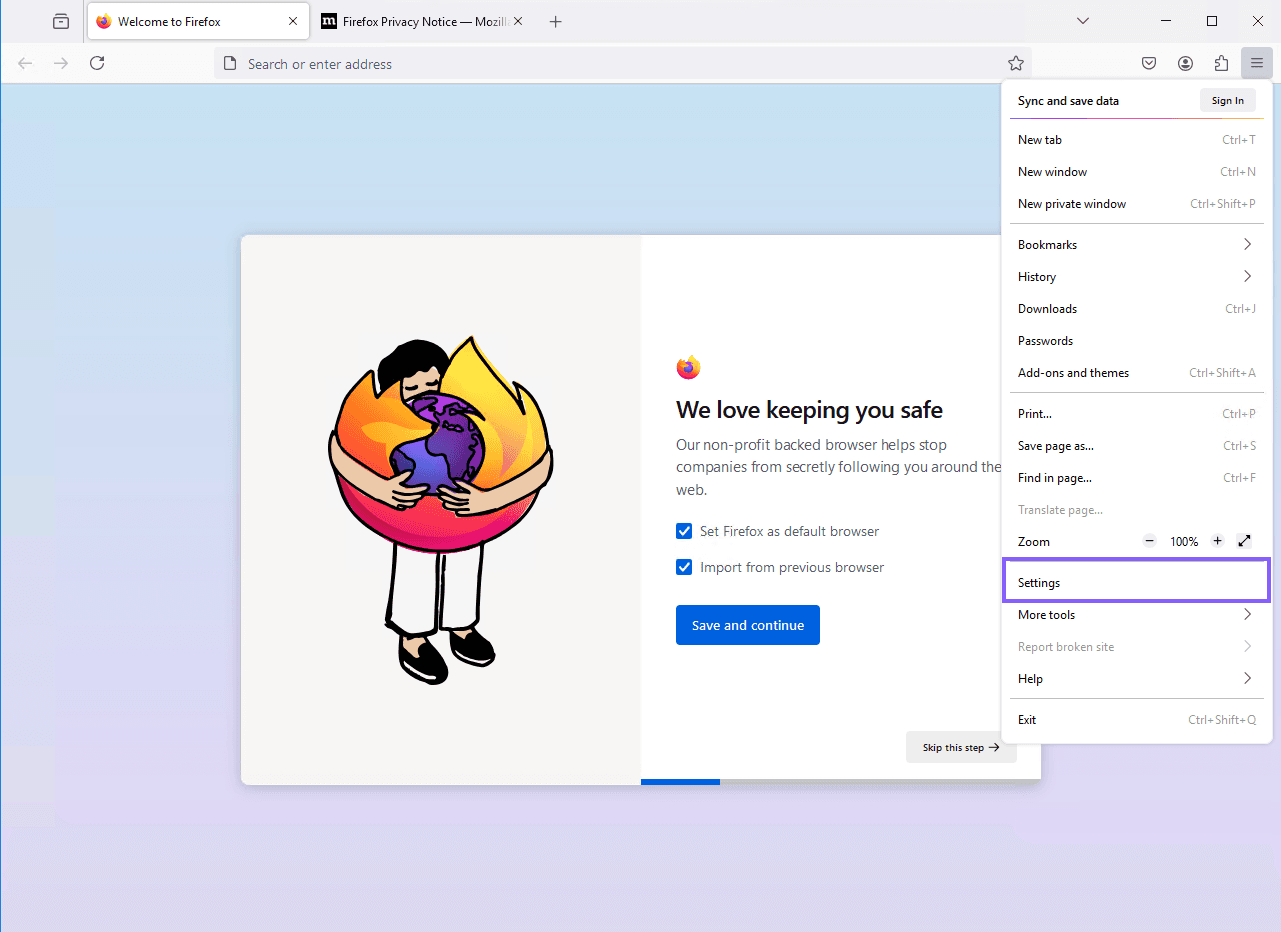
After installing Firefox, click the three bars at the top right corner of the browser, then select "Settings."
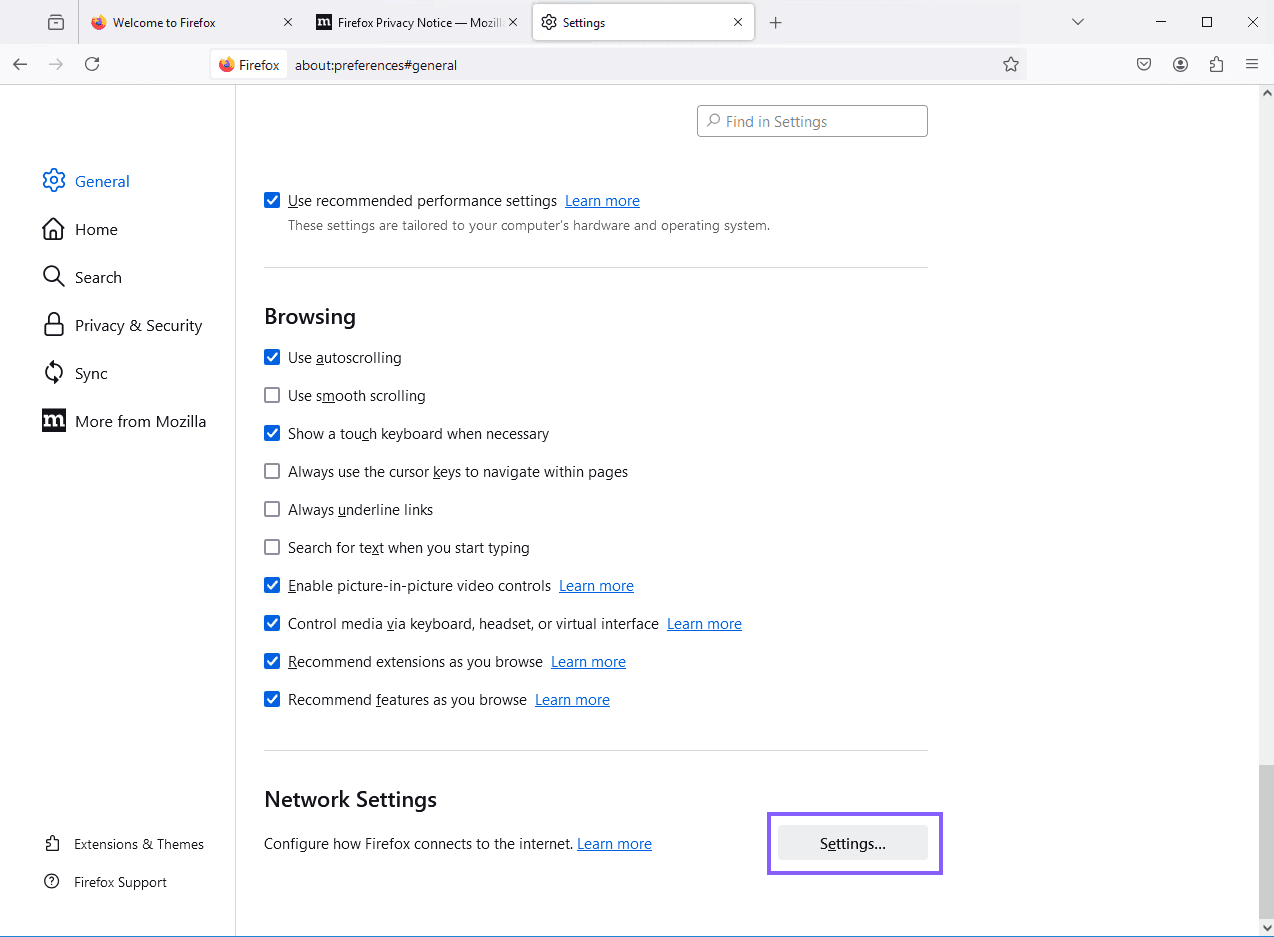
After clicking on "Settings," open the proxy options. Where they are depends on your Firefox version. In current versions, select "Privacy and security" on the left, go to the "Connection and software security" section, click "Advanced settings" and then "Configure proxy" under "Proxy settings." Firefox 149 to 151 show "Configure proxy" on the "General" page. Older versions, like the one pictured, have a "Network Settings" section at the bottom of "General" with a "Settings…" button. In every version you can type proxy in the "Find in Settings" box to jump to it.
In your dashboard, click "My Proxies" in the left sidebar. If the proxy is Pending, click "Start proxy" so it can carry traffic.
Note the host and HTTP port from the "HTTP proxy" line in the Connection column. Under Credentials, "Copy username" copies your username, and your proxy password can be revealed with the eye icon or copied with "Copy password". You don't need your account password for this.
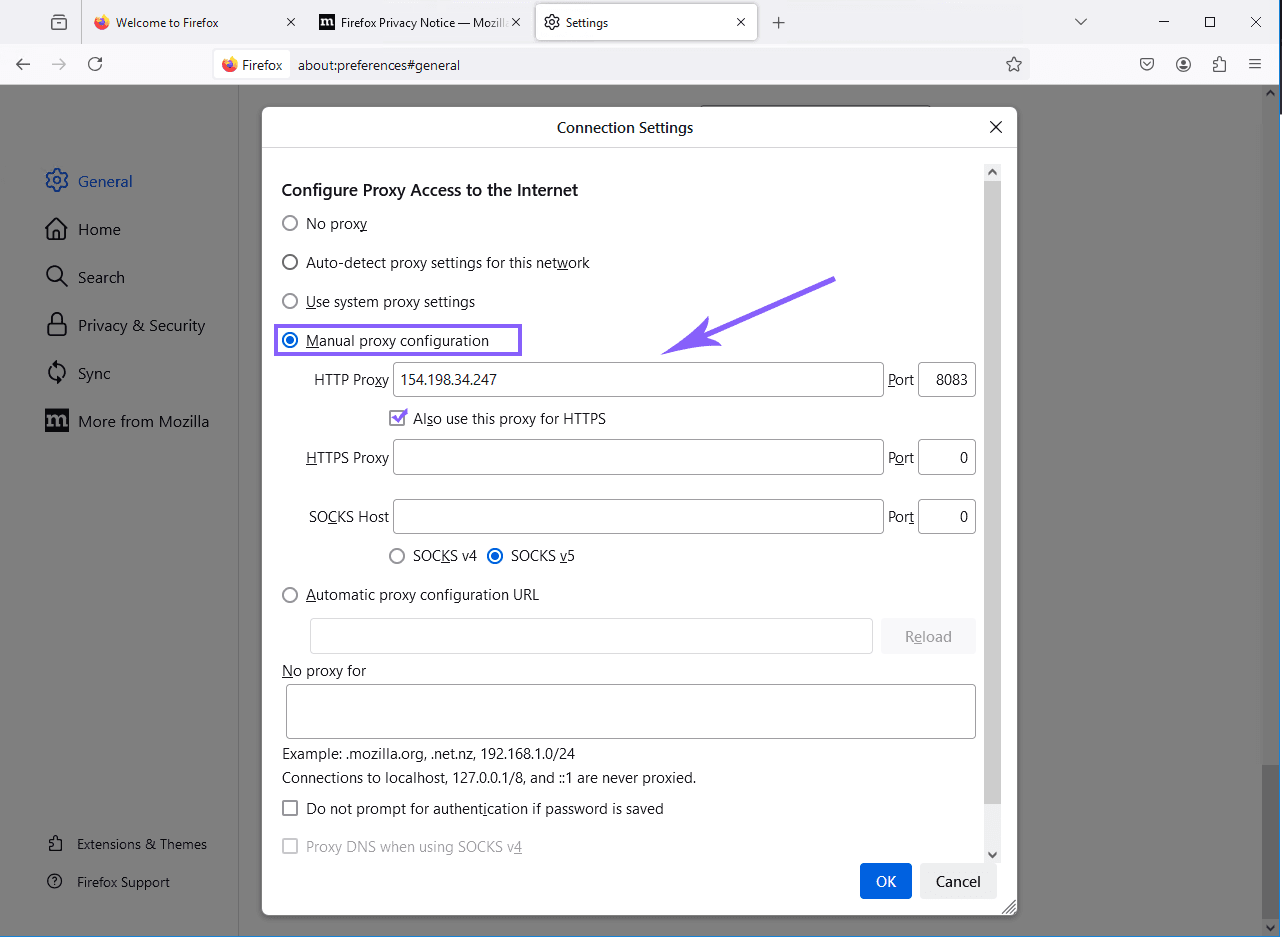
The Connection Settings window will prompt. Select "Manual proxy configuration", then enter your proxy host in "HTTP Proxy" and the HTTP port shown on your proxy in "Port". Finally, check "Also use this proxy for HTTPS."
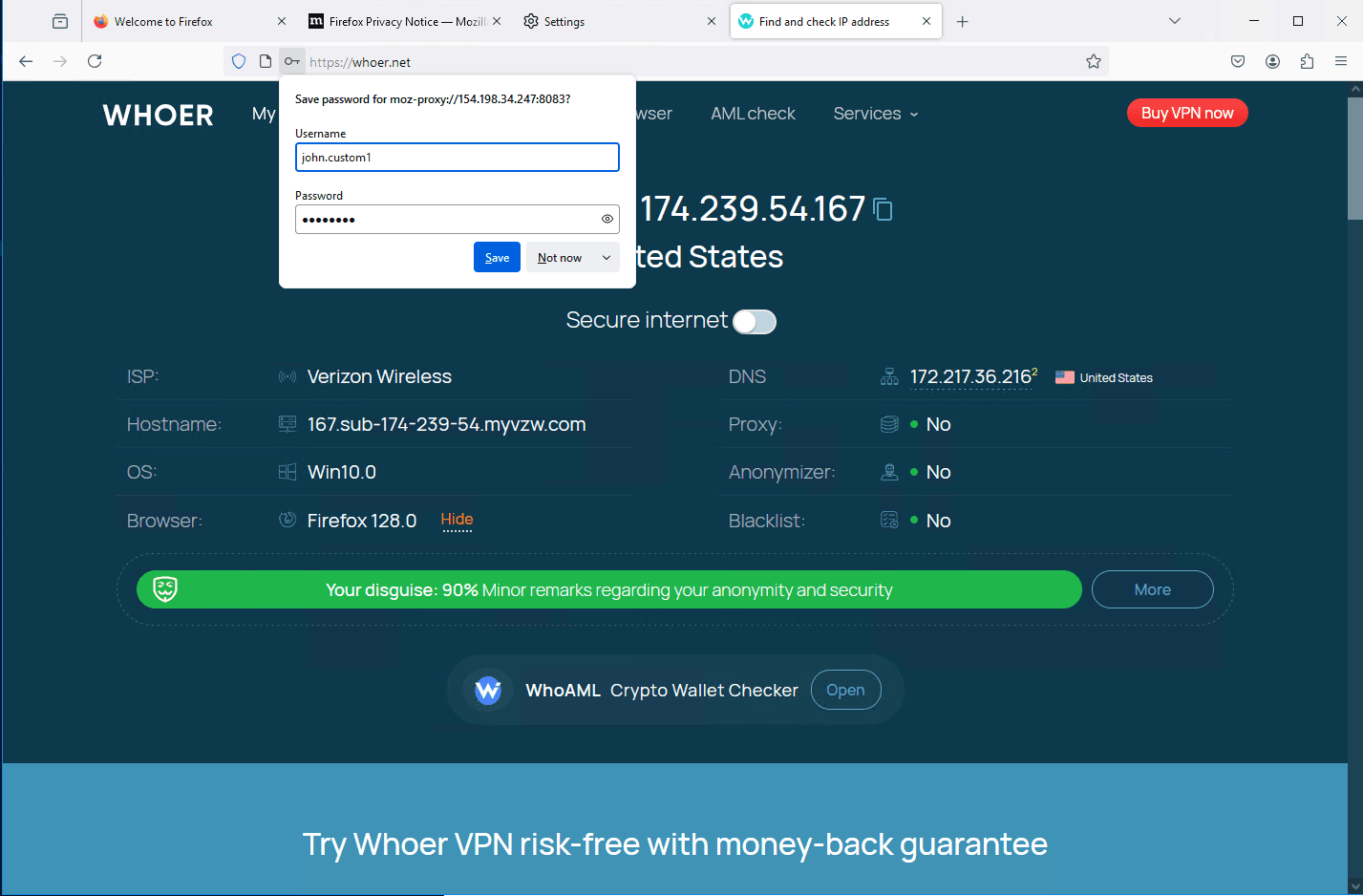
Load any website. You will be prompted to enter your username and password for authentication; paste the ones from your dashboard.
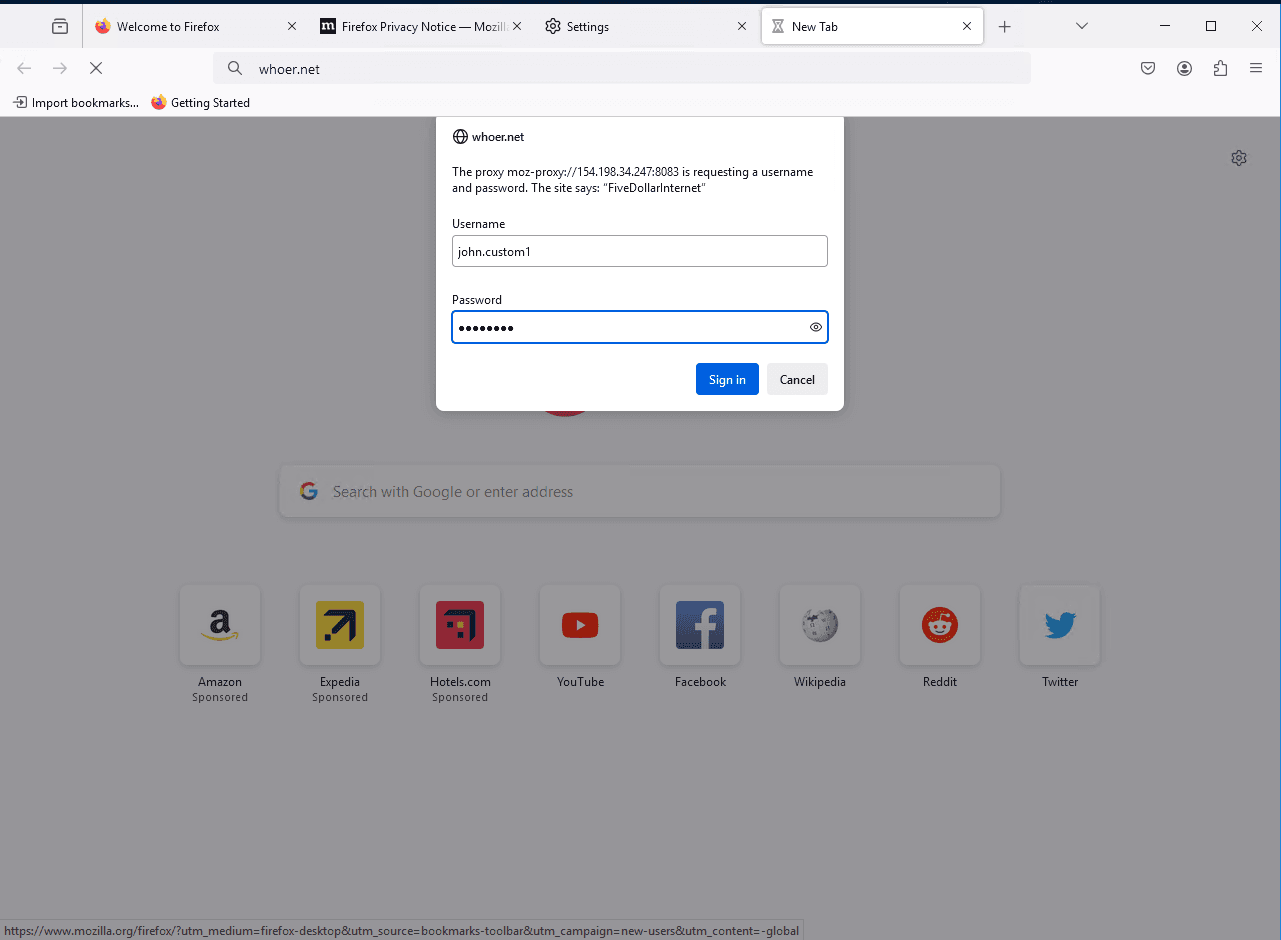
That's it—you have successfully set up your proxy.